Understanding Content Performance in Analyze
To evaluate how your published content is performing across your connected social media channels, go to the Analyze section in SocialBu and open the Content Report. This feature gives you a detailed breakdown of your content's effectiveness, helping you optimize your social media strategy.
Written By Ghina Rehman
Last updated About 2 months ago
Before you start
Make sure your social accounts are connected to SocialBu.
Publish or schedule content through SocialBu to track performance data.
Select the correct team, account, and date range before reviewing the report.
Allow some time for recent post data to sync from each social network.
How to open Content Performance
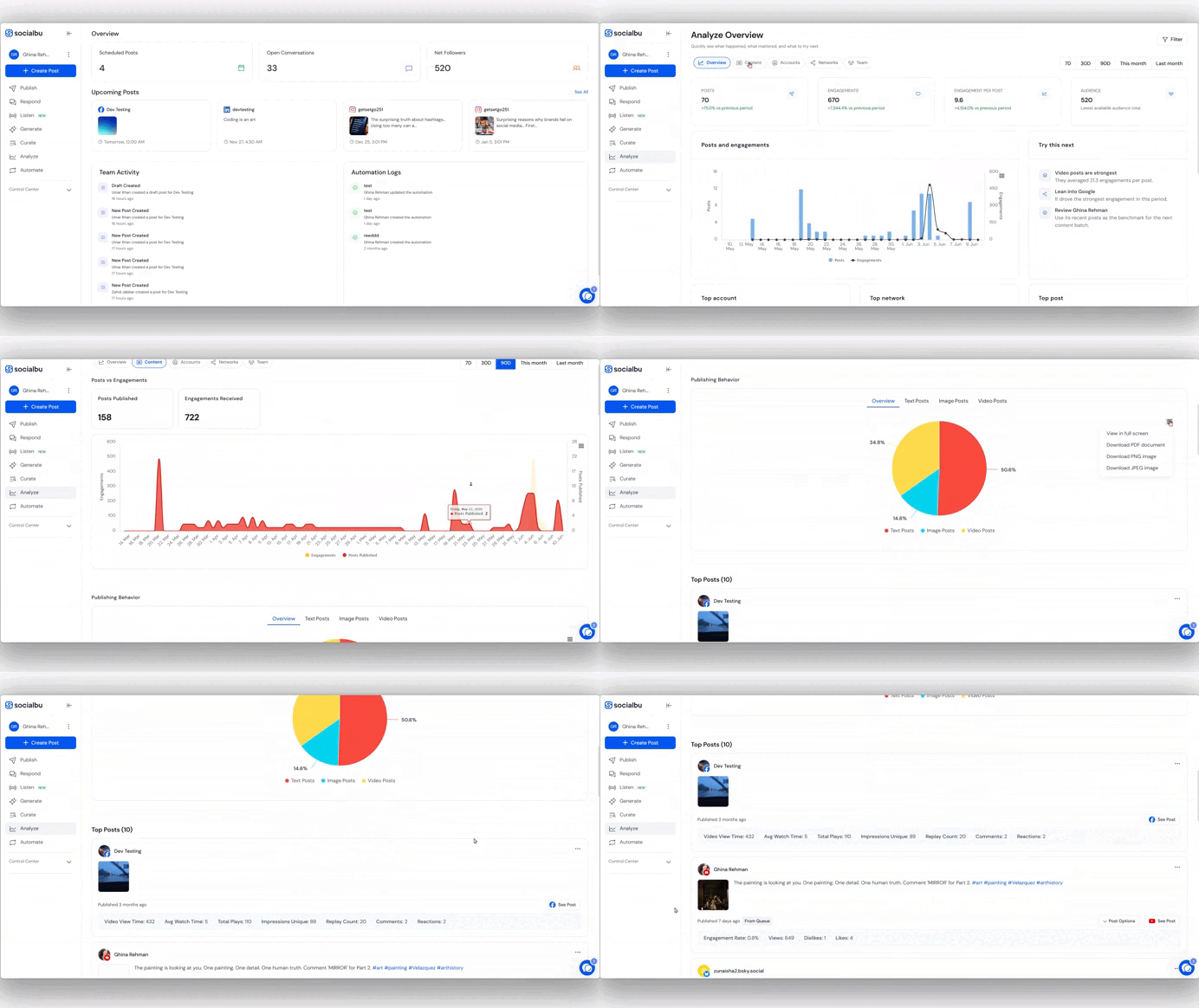
Log in to your SocialBu account.
Go to Analyze from the main menu.
Open Content Performance or Content Report.
Choose the social accounts, team members, and date range you want to review.
Use the charts and post-level data to compare performance.
What Content Performance shows
The report gives you a detailed view of how your content is performing across your connected channels. Depending on the selected accounts and supported platform data, you may see:
Posts vs engagement: Compare how often you published content with how much engagement that content received.
Total posts: See the number of posts published during the selected date range.
Total engagement: Review interactions such as likes, comments, shares, clicks, replies, saves, or other platform-supported engagement actions.
Publishing behavior: Understand how your posting volume changes over time.
Top-performing posts: Identify the posts that received the highest engagement.
Content type performance: Compare how different formats, such as images, videos, links, and text posts, are performing.
Account and team filters: Narrow the report by account, team, or date range to focus on a specific brand, client, or campaign.
How to use this report
Find which posts received the most engagement and reuse similar content ideas.
Compare posting frequency with engagement to see whether publishing more often is helping or hurting performance.
Review content types to understand whether videos, images, links, or text posts perform best for your audience.
Check performance across different accounts to see which channels need more attention.
Use the insights to plan future campaigns, posting schedules, and content themes.
Understanding engagement
Engagement means the actions people take on your content. This can include likes, comments, shares, clicks, saves, replies, reactions, reposts, or other interactions supported by each social network.
Engagement can vary from platform to platform because each social network defines and shares engagement differently. For example, Facebook engagement may include reactions, comments, shares, and clicks; Instagram may include likes, comments, saves, shares, and profile actions; LinkedIn may include reactions, comments, reposts, and clicks; X/Twitter may include replies, reposts, likes, quotes, and clicks; TikTok may include likes, comments, shares, views, and saves where available.
Because of these platform differences, the exact engagement metrics shown in SocialBu may vary by network and by what each platform allows third-party tools to access through its API. When comparing accounts, focus on overall trends and supported metrics instead of expecting every platform to show the same engagement fields.
Why numbers may differ from native social platforms
You may sometimes notice a difference between SocialBu analytics and the numbers shown inside a social platform. This can happen because:
Social networks update analytics at different speeds.
Some platforms limit which metrics third-party tools can access.
Native platforms may include paid, boosted, or private metrics that are not available through the API.
The selected date range or timezone may be different.
Deleted posts, failed posts, or posts not published through SocialBu may not appear in the same way.
Common issues and solutions
No data is showing
Possible causes: No content was published in the selected date range, no accounts are selected, the account was recently connected, or the platform has not synced data yet.
Solution: Expand the date range, select the correct account, confirm the account is connected, and wait for the data to sync. If the account was just connected, older historical data may be limited.
Some posts are missing
Possible causes: The post is outside the selected date range, belongs to another account or team, failed to publish, was deleted, or was not published through SocialBu.
Solution: Check the date range, account filters, team filters, and publishing history. Also confirm that the post still exists on the social platform.
Engagement numbers look too low
Possible causes: Recent engagement may not have synced yet, the social platform may restrict some metrics, or the selected date range may not include the full post lifecycle.
Solution: Wait and refresh the report later, widen the date range, and compare supported metrics only. Keep in mind that each network provides different analytics data.
The report does not match the native platform
Possible causes: Native platforms may include additional metrics, paid engagement, real-time updates, or timezone differences.
Solution: Check that the same account, date range, timezone, and metric type are being compared. Small differences are normal because platforms and third-party tools receive data differently.
Filters are showing no results
Possible causes: The selected team, account, content type, or date range may not have any matching posts.
Solution: Clear filters, select all accounts, and use a wider date range. Then narrow the filters one by one.
A connected account is not available in the report
Possible causes: The account may be disconnected, expired, missing permissions, or not assigned to the selected team.
Solution: Go to the accounts section, reconnect the account if needed, confirm permissions, and make sure you are viewing the correct team workspace.
Recent posts are not updated yet
Possible causes: Analytics from social networks can take time to update, especially for newly published posts.
Solution: Wait a little and refresh the report. For the most accurate results, review performance after the post has had enough time to collect engagement.
Charts or exports are not loading
Possible causes: Browser cache, extensions, slow connection, blocked scripts, or a temporary loading issue.
Solution: Refresh the page, try an incognito/private window, disable browser extensions temporarily, clear cache, or try another browser.
Team member performance looks incomplete
Possible causes: The selected team member may not have published posts in the date range, or posts may belong to another team/account.
Solution: Confirm the team member, team workspace, account, and date range. Clear filters if needed.
Hashtag engagement data is unavailable
Possible cause: Hashtag-level engagement insights may be limited or unavailable due to platform API restrictions.
Solution: Use post-level performance, content type performance, and engagement trends to evaluate what is working instead.
FAQ’s
Can I see performance for all my social accounts together?
Yes. You can review combined performance across selected connected accounts, or filter the report to focus on specific accounts.
Can I filter content performance by date?
Yes. Use the date range filter to review performance for a specific period, such as a week, month, quarter, or campaign window.
Can I compare performance between different social networks?
Yes, you can use account and network filters to compare performance. Keep in mind that each social network may provide different metrics.
Why is my latest post not showing engagement yet?
Recent posts may need time to collect engagement and sync analytics data. Check again later or expand the date range.
Does SocialBu show analytics for posts not published through SocialBu?
Availability may vary by platform and account permissions. For the most complete reporting inside SocialBu, publish and manage your content through SocialBu.
Why are some metrics missing for a platform?
Each social network controls which metrics are available to third-party tools. If a metric is not provided by the platform API, SocialBu cannot display it.
Can I use Content Performance for client reporting?
Yes. Content Performance can help you summarize publishing activity, engagement trends, top posts, and content-type performance for clients or internal reports.
What should I do if the report still looks incorrect?
Check the selected accounts, date range, team, and filters first. If the issue persists, contact SocialBu support with the account name, date range, screenshots, and an example post URL so the team can investigate more quickly.
Need help?
If you still have questions about Content Performance in Analyze, contact the SocialBu support team at support@socialbu.com. Please include the connected account name, date range, screenshots, and a short description of the issue.