How to Bulk upload posts on Mastodon?
Written By Ghina Rehman
Last updated 5 months ago
Connect Your Mastodon Account
If you haven’t already, go to the Accounts section and connect your Mastodon account to SocialBu.
Access the Bulk Import Feature
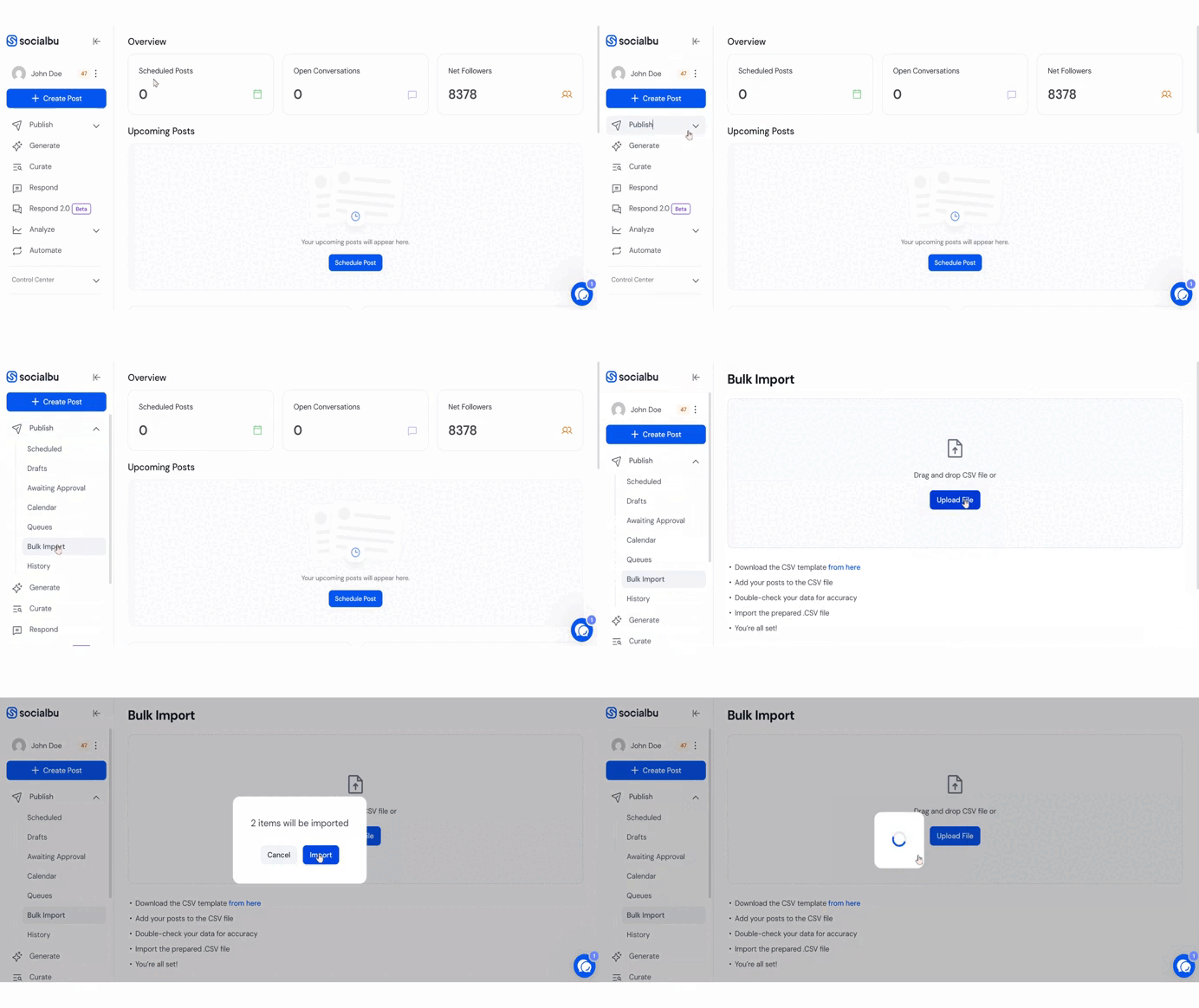
Navigate to Publish > Bulk Import.
Download the CSV Template
Click on the download link to get the CSV template with all required columns.
Fill In Your Data
Carefully enter your content following the template format:
Content: The text you want to post on Mastodon
Media (optional): Direct public URL to any image or video
Account: The name of your Mastodon account connected to SocialBu
Publish At: Date and time in this format → dd/mm/yyyy hh:mm(am/pm)
⚠️ Important: Ensure there are no formatting errors or broken media links.

For threaded replies, you can create new separate columns such as "threaded replies 1," "threaded replies 2," and so forth if you want to post multiple threaded replies.
You can add additionl columns for post options supported by the platform like spoiler text, threaded replies and other.
Save & Upload the CSV File
Save your completed file in CSV format with UTF-8 encoding.
Upload it back via the Bulk Import section.
Confirm & Import
A popup will appear showing your posts from the CSV.
Click “Import” and your posts will be added to the scheduler.
FAQs
Can I upload media files with my Mastodon posts?
Yes. Just provide the direct and publicly accessible URL of the image or video in the “Media” column.
What’s the post limit per CSV upload?
You can import up to 200 posts per CSV file.
Where can I find my imported posts?
Go to Publish > Scheduled to view and manage all your imported posts.
Need Further Assistance?
If you have any other concerns or queries, email us at support@socialbu.com 📩