How to Bulk upload posts on BlueSky?
If you want to save time by scheduling multiple posts to BlueSky at once, SocialBu's bulk upload feature can help. Here's how to do it step by step:
Written By Ghina Rehman
Last updated 4 months ago
Access the Bulk Import Tool
Navigate to Publish → Bulk Import. You can also download the pre-formatted CSV template to ensure your data is structured correctly.
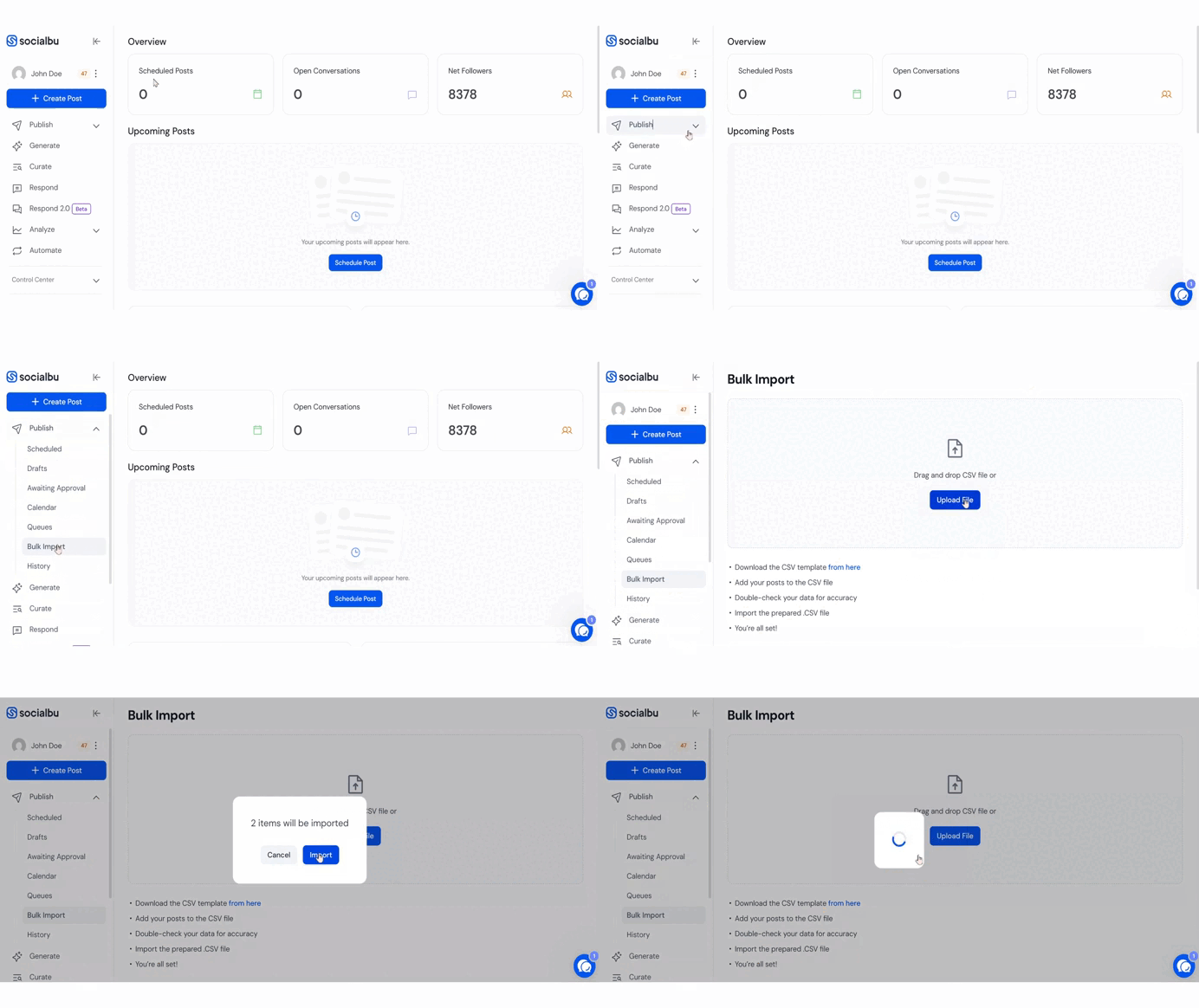
Fill in the CSV File
Add your post content, including text, media URLs, and scheduled time. Important: Stick to the format exactly to avoid errors during upload.
Upload the Completed CSV
After adding your data, upload the CSV file back into the Bulk Import section.
Click “Import” to schedule your posts to BlueSky.
For threaded replies, you can create new separate columns, such as "threaded replies 1," "threaded replies 2," and so forth, if you want to post multiple threaded replies.
Check out the detailed video here.
FAQs
Can I include images or videos in the bulk upload for BlueSky?
Yes, just include direct links to media files in the relevant column of the CSV.
What happens if there's an error in the CSV file?
Make sure all fields are filled out and formatted according to the template. You’ll see an error message if something's wrong.
Can I bulk upload to multiple accounts?
Yes, if multiple BlueSky accounts are connected, you can assign each post to the appropriate account using the “Account” column.
Need Further Assistance?
If you have any other concerns or queries, email us at support@socialbu.com 📩