Bulk Import in SocialBu
Use Bulk Import to upload and schedule multiple posts from a CSV file. Row limits depend on your plan: 200 rows on Starter and lower plans, 500 rows on Growth, and 2,000 rows on Agency.
Written By Ghina Rehman
Last updated 13 days ago

Organize Data in a CSV File
Download and complete the provided CSV template. The exact required fields depend on whether you are scheduling a post directly or adding it to a queue.
Core CSV Columns
Content: The main text of the post. Content is required unless the selected platform allows a media-only post.
Media: Public image or video URLs. Use this when your post needs media or when the selected platform requires media. To add multiple media files to one post, separate the URLs with commas.
Account: The name of the connected account you are posting from. It must match the account name in SocialBu.
Account Type: The platform/account type. Supported examples include Facebook Page, Facebook Group, Instagram, LinkedIn, X/Twitter, TikTok, YouTube, Pinterest, Reddit, Threads, Bluesky, Mastodon, and Google Business Profile.
Publish At: Schedule date/time in this format:
dd/mm/yyyy hh:mm(am/pm)ordd-mm-yyyy hh:mm(am/pm)Example:
27/08/2024 04:30pmLink: (Optional) A single URL to be added as a clickable link, mainly for LinkedIn and Facebook.
Using Add to Queue
To add imported posts to a publishing queue instead of scheduling them at a specific time, add an Add to Queue column and enter the exact queue name. When this column is filled, SocialBu uses the queue's connected accounts and schedule. When it is empty, the row is treated as a normal scheduled post and requires Account, Account Type, and Publish At.
Hosting Media Links
Use public media links that SocialBu can download. Direct image or video file links work best.
Note:
https://imgpile.com/i/nnH30G- Not supportedhttps://imgpile.com/images/nnH30G.png- Supported
Add Optional Columns (Platform-Specific Features)
Optional fields vary by platform and account type. Examples include first comment, media alt text, thumbnails, post as story/reel, privacy or visibility, Pinterest board name, YouTube title/tags, and Google Business Profile CTA or event fields.
Platform rules still apply during Bulk Import. For example, Pinterest posts need a board name, TikTok and YouTube videos may need privacy or title options, and required media or thumbnail fields must be included for the selected platform and post type.
To identify what optional settings are available for your target platform:
Open the Post Composer
Click Show Options
Review the fields relevant to that platform
Then, replicate those headings in your CSV file as additional columns.
Check File Format and Encoding
Before uploading:
Save the file in CSV format
Ensure UTF-8 Unicode text encoding for compatibility
Make sure all publish times are in the future. Rows with past publish times will fail.
Import the CSV File
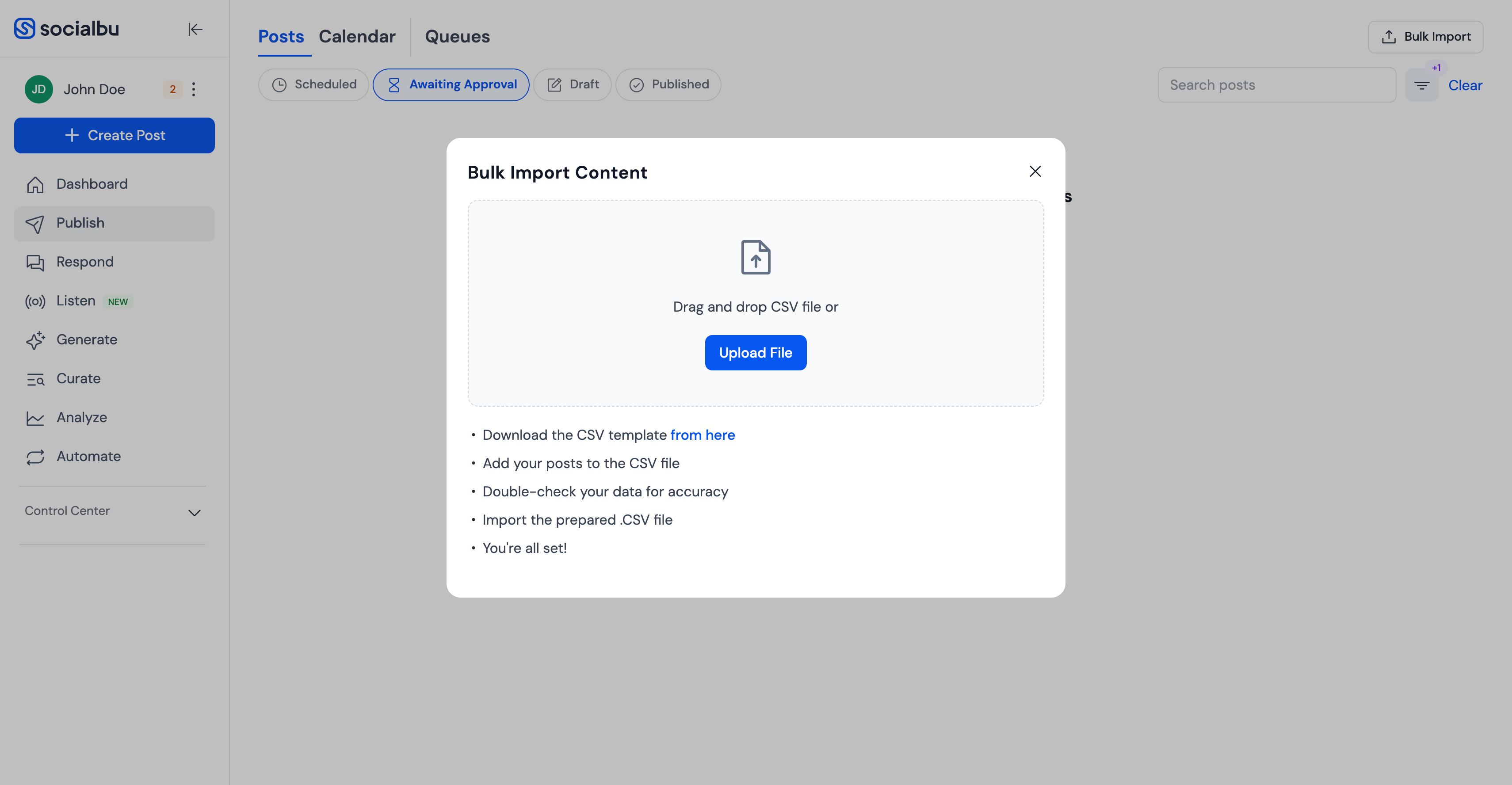
Click "Upload File" on the Bulk Import page
Upload your CSV
Review your data
Click Import
If any rows contain errors, SocialBu will highlight them for correction. Once resolved, successful rows are scheduled as posts or added to the selected queue when you use the Add to Queue column.
FAQs
How many posts can I upload at once?
It depends on your plan.
On Starter and lower plans, you can upload 200 rows per CSV file.
On Growth, you can upload 500 rows per CSV file.
On Agency, you can upload 2,000 rows per CSV file.
What happens if I use incorrect date/time formatting?
The row will not import. Use
dd/mm/yyyy hh:mm(am/pm)ordd-mm-yyyy hh:mm(am/pm), and make sure the publish time is in the future.Can I use links from Google Drive or Dropbox for media?
Direct public file links work best. SocialBu can also handle public Google Drive and Dropbox file links in many cases, but normal share pages or restricted links may fail. Make sure the file is publicly accessible.
How do I find optional fields for different platforms?
Use the Post Composer > Show Options to see what each platform supports.
Can I mix different platform posts in the same CSV?
Yes. Just make sure the Account and Account Type columns are correctly filled for each row.
Need Further Assistance?
If you need help with Bulk Import, contact SocialBu support at support@socialbu.com. Include your CSV file, the row number with the issue, and a screenshot of any error message.