How to Connect Your Social Media Accounts to SocialBu
Learn how to connect social media accounts to SocialBu so you can schedule, publish, automate, and manage content from one place.
Written By Ghina Rehman
Last updated 17 days ago
Use this guide to connect social media accounts from the SocialBu Accounts page. Connected accounts can then be used for publishing, scheduling, automations, analytics, and other SocialBu workflows supported by your plan.
Open the Accounts page
Log in to SocialBu.
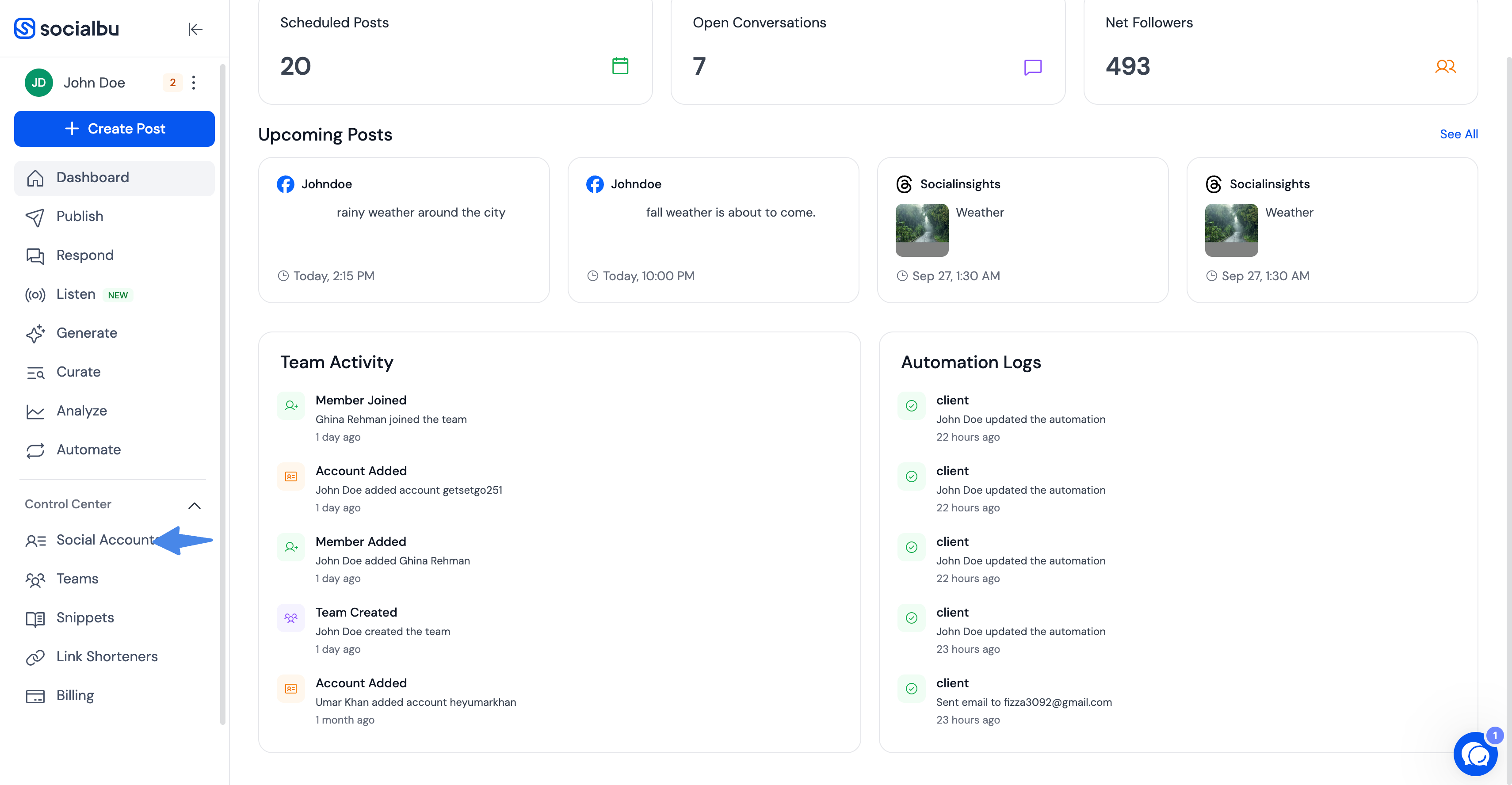
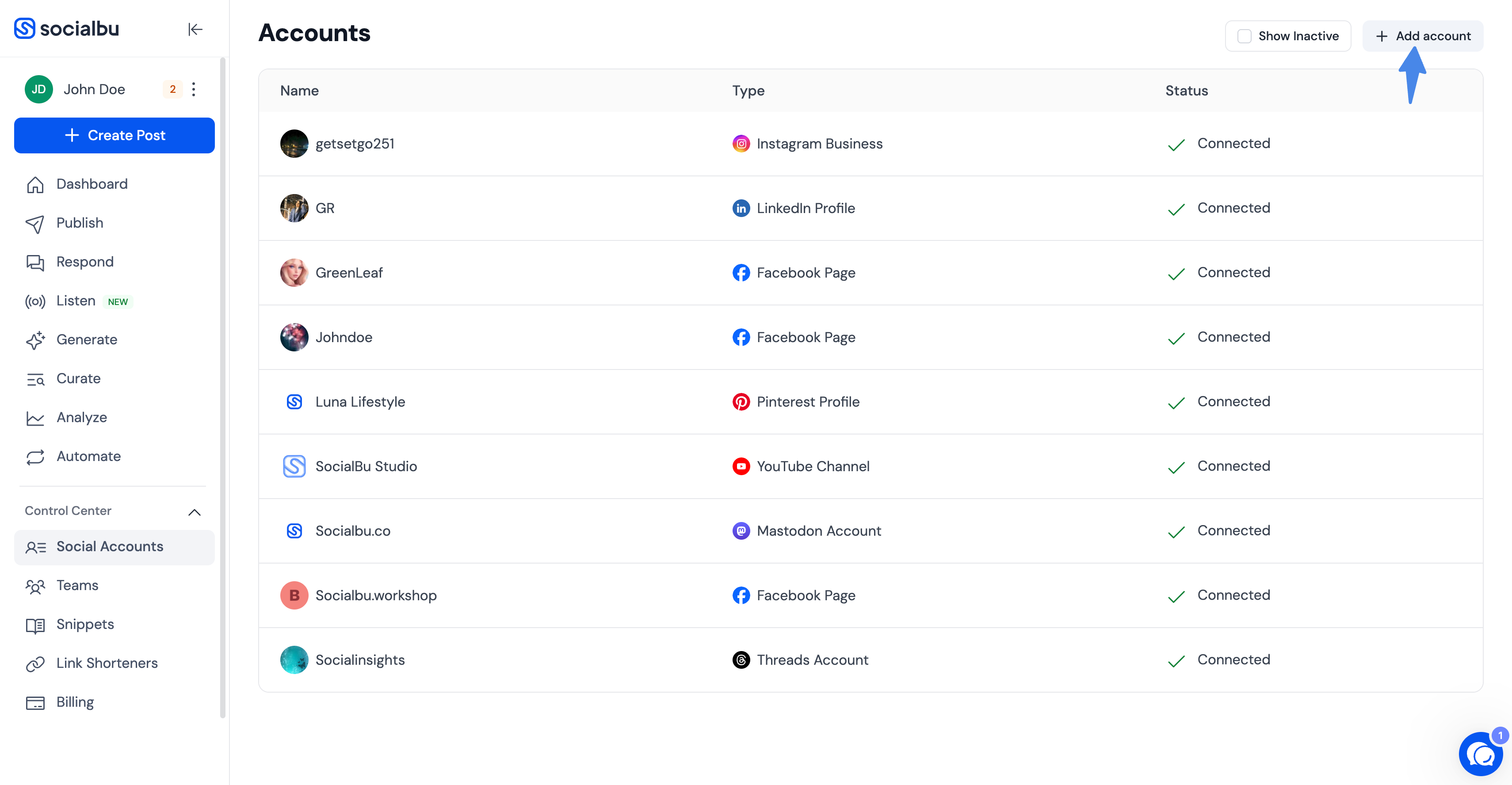
Open Accounts from your dashboard.
Click Add or View all platforms.
Choose how to connect
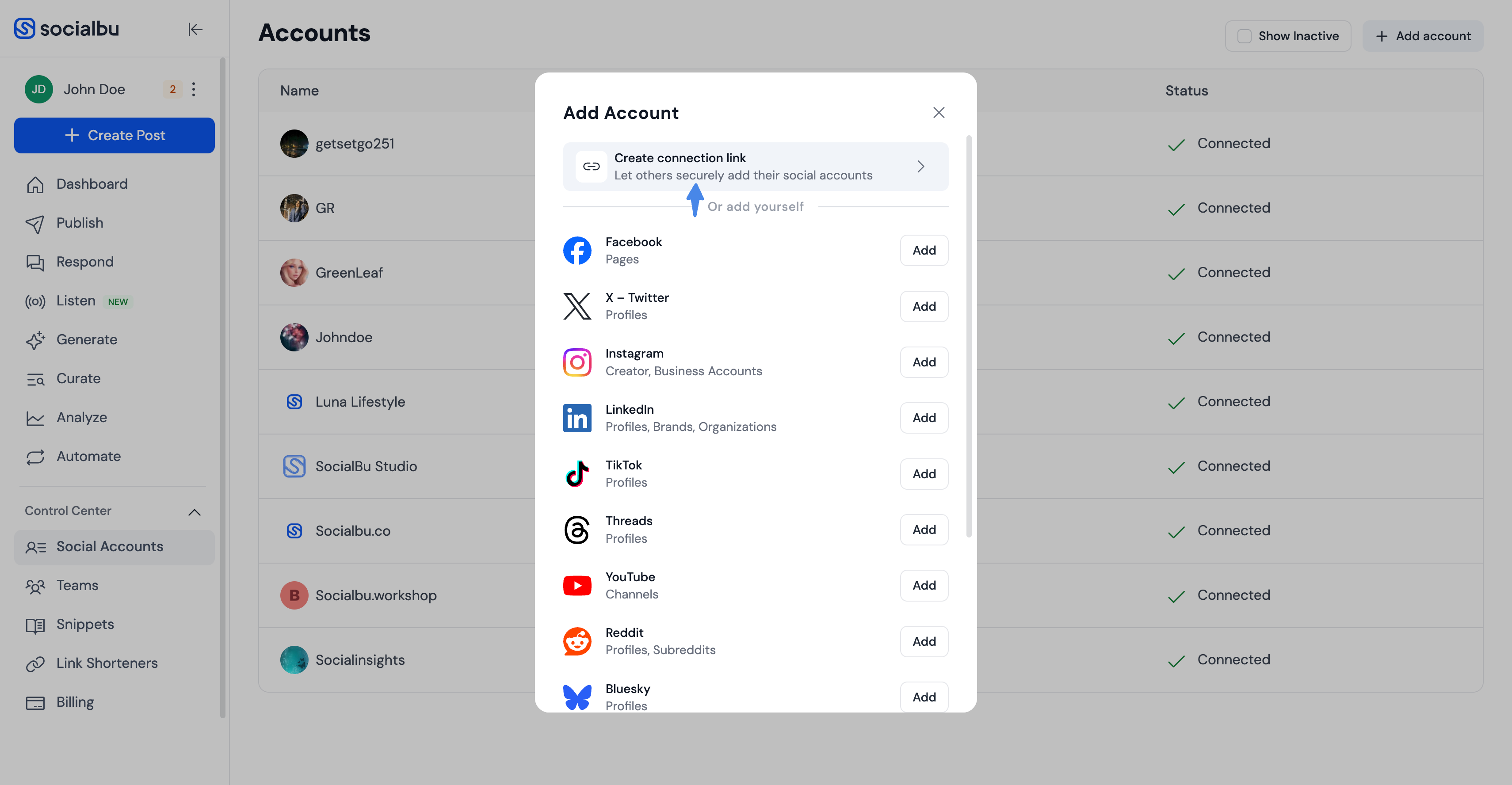
In the Add Account modal, you can connect an account yourself or create a secure connection link so someone else can connect their own social account without sharing login credentials with you.
Choose a platform
Select the platform you want to add. SocialBu currently shows these account types in the Accounts page:
Facebook: Pages
X/Twitter: Profiles
Instagram: Creator and Business accounts
LinkedIn: Profiles, Organizations, and Brands
TikTok: Profiles
Threads: Profiles
YouTube: Channels
Reddit: Profiles and Subreddits
Bluesky: Profiles
Mastodon: Profiles
Google Business Profile: Locations
Pinterest: Profiles
Authorize access
Most platforms redirect you to the platform's authorization page. Sign in with the account that owns or manages the profile, page, channel, organization, or location you want to add. Grant the requested permissions so SocialBu can publish, schedule, read account details, and perform the actions required for that platform.
YouTube and Google Business Profile both use Google authorization, but they request the service-specific access needed for YouTube channels or Google Business Profile locations. Mastodon asks for your Mastodon domain before redirecting. Bluesky uses your handle and a Bluesky App Password instead of your main Bluesky password.
Select accounts after authorization
For platforms that can return more than one selectable account, SocialBu shows an account-selection popup after authorization. Select the accounts you want to add, then click Add. The Add button is enabled only after at least one account is selected.
After the connection is complete, the account appears in your SocialBu Accounts list. If your plan account limit has been reached, SocialBu shows an account limit warning and prevents adding more accounts until you upgrade or remove an existing account.
Important notes while connecting accounts
Multiple accounts on the same platform: If the account you need does not appear, make sure you are signed in to the correct profile on that platform, or try a different browser/session and connect again.
Page or organization access: For Facebook, LinkedIn, Google Business Profile, and similar platforms, only assets that the authorized profile can manage are available to select.
Bluesky App Password: Before connecting Bluesky, create an App Password in Bluesky under Settings > Privacy and security > App Passwords. Use that App Password in SocialBu, not your main Bluesky password.
Mastodon domain: Enter the Mastodon server/domain for your account, such as mastodon.social.
Need help?
Contact SocialBu support at support@socialbu.com if you have questions or need help connecting an account.