Set Up an Automated Reply for New Messages
With SocialBu, you can automatically respond to messages on your Facebook Page. This automation is ideal for handling customer queries, sending instant replies, and improving response time, especially outside business hours.
Written By Ghina Rehman
Last updated About 1 month ago
Step 1: Log in to your SocialBu account
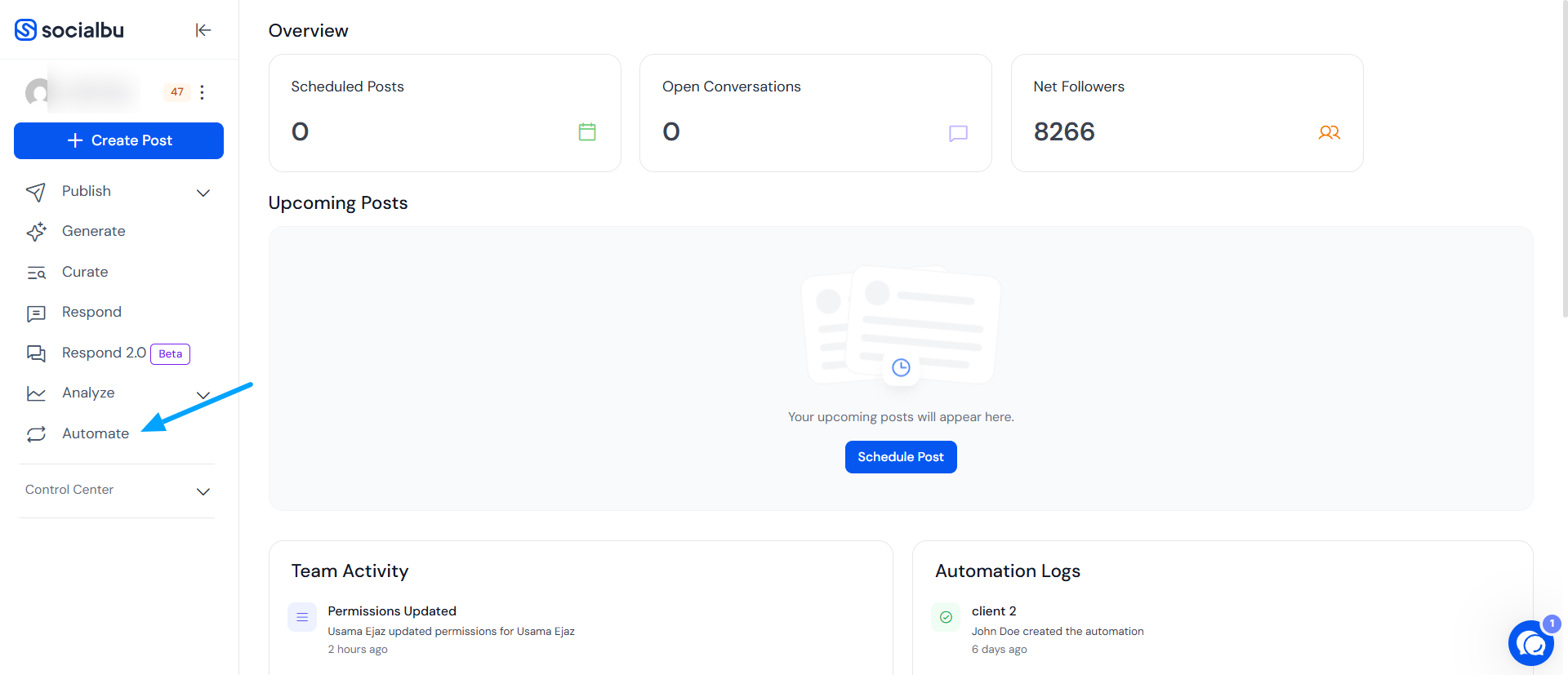
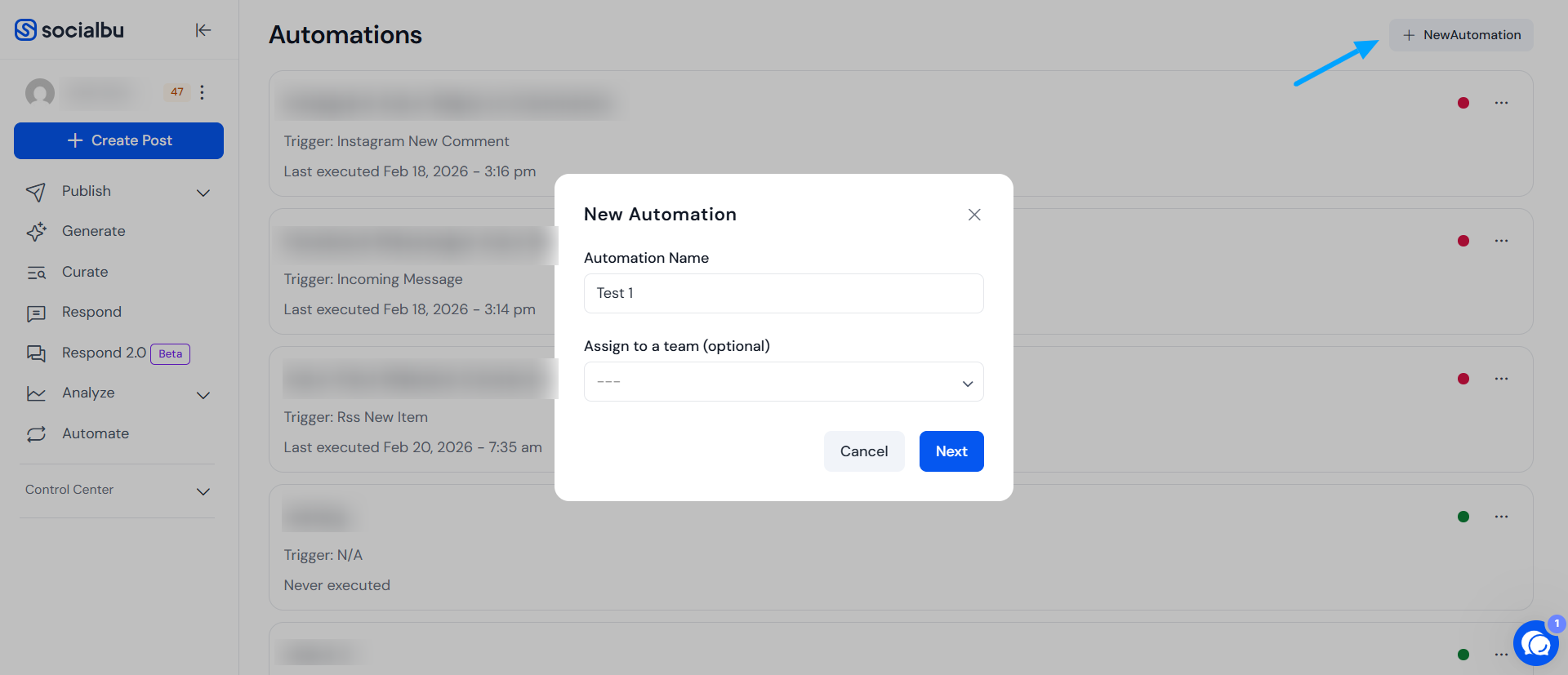
After you log in, go to Automate, click “New Automation,” and enter a name. SocialBu will open the Flow Editor for that automation.
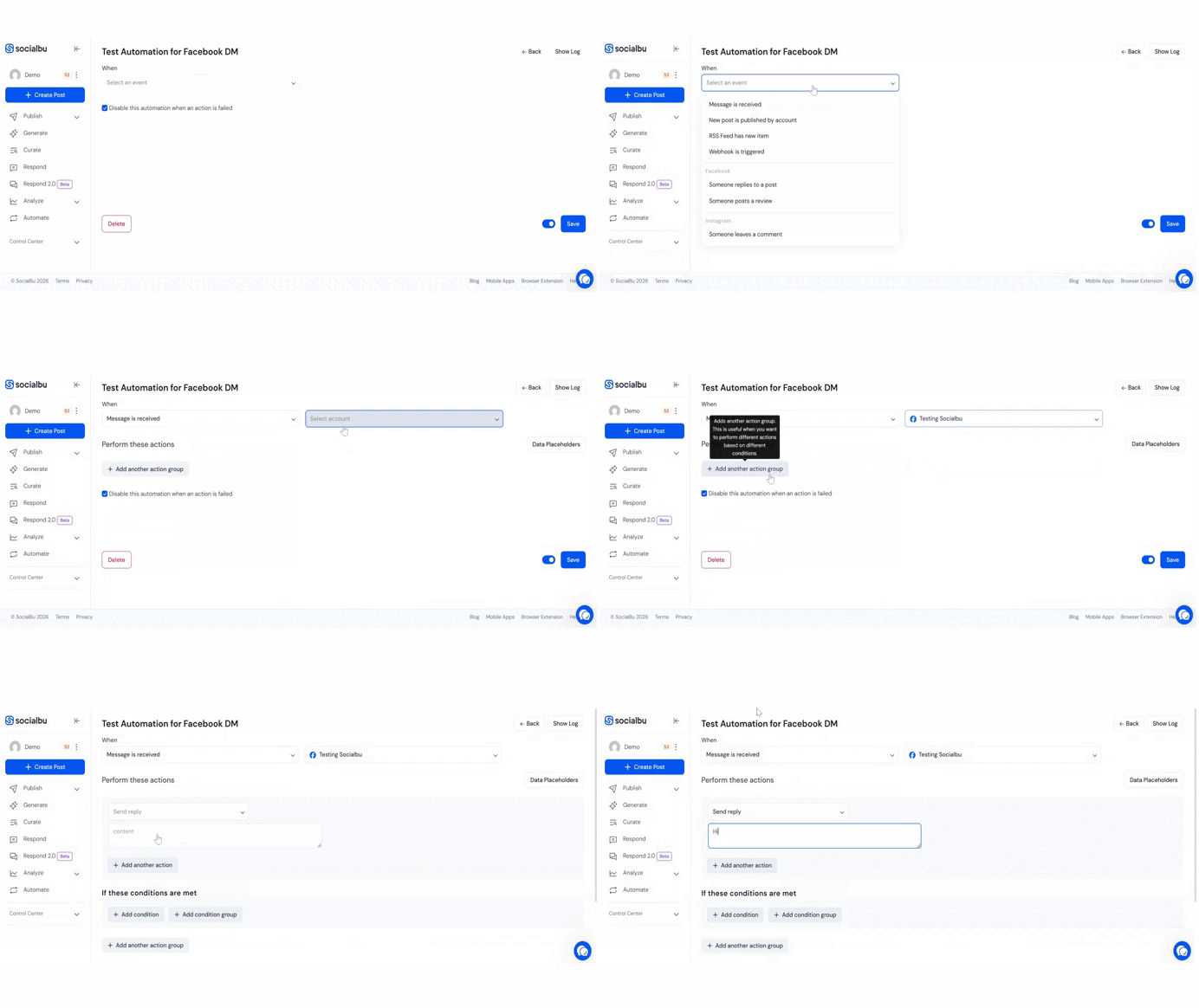
Step 2: In the Flow Editor, configure the trigger as “Message is received”, choose the relevant eligible account, and add the “Send a reply” action.
Step 3: You can use “Data Placeholders” which will help you to automatically pull the specific information into a message.
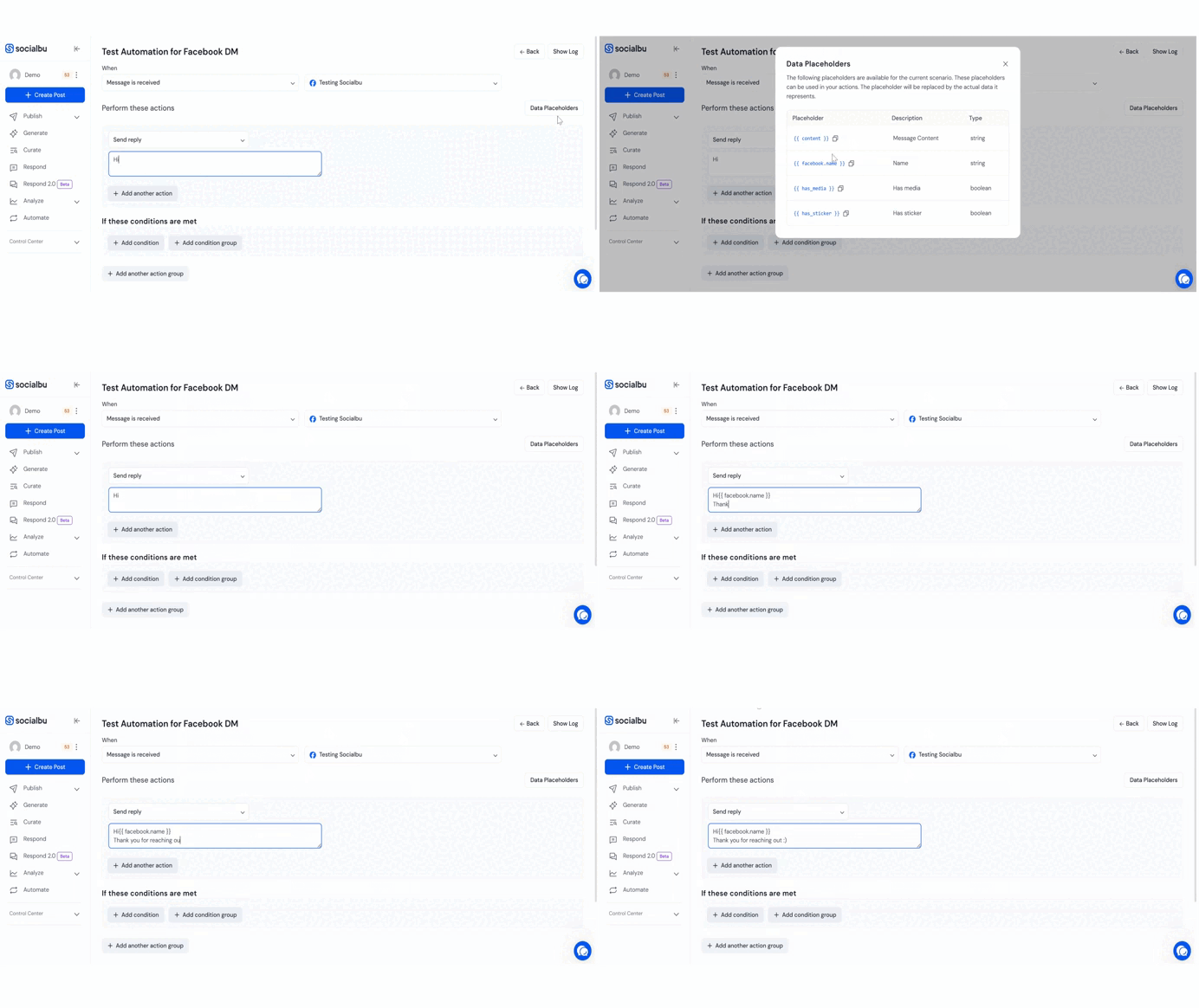
You can use multiple data placeholders in a single reply according to your requirement.
FAQs
Can I choose which account to apply the automation to?
Yes. Select one of the eligible connected accounts shown in the account selector while configuring the trigger. SocialBu only shows accounts that can be used with this automation.
Can I send replies only during working hours?
At the moment, it isn’t possible to set working-hour schedules for this trigger. You’ll need to disable and re-enable the automation manually when needed.
Can I send different replies for different keywords?
Absolutely. You can define multiple “If message contains…” conditions and set custom replies for each case.
Can I stop or edit automations later?
Yes. All automations are fully editable, pausable, or deletable at any time through the Automation section.
Need further assistance?
If you need help, email us at support@socialbu.com.