What Is the Curate Feature and How to Use It?
Learn how SocialBu Curate helps you discover relevant articles, filter content by topic or time range, create posts from curated content, publish or schedule them, and troubleshoot common Curate issues.
Written By Ghina Rehman
Last updated About 1 month ago
Before you start
Make sure you are logged in to SocialBu and have access to Curate.
Your plan or workspace must include Curate.
For team workspaces, you need the Manage Curate permission.
Connect the social accounts you want to publish or schedule posts for.
Review each article before sharing it. Curate helps you discover ideas, but you decide what is right for your audience.
Open Curate
Open your SocialBu workspace.
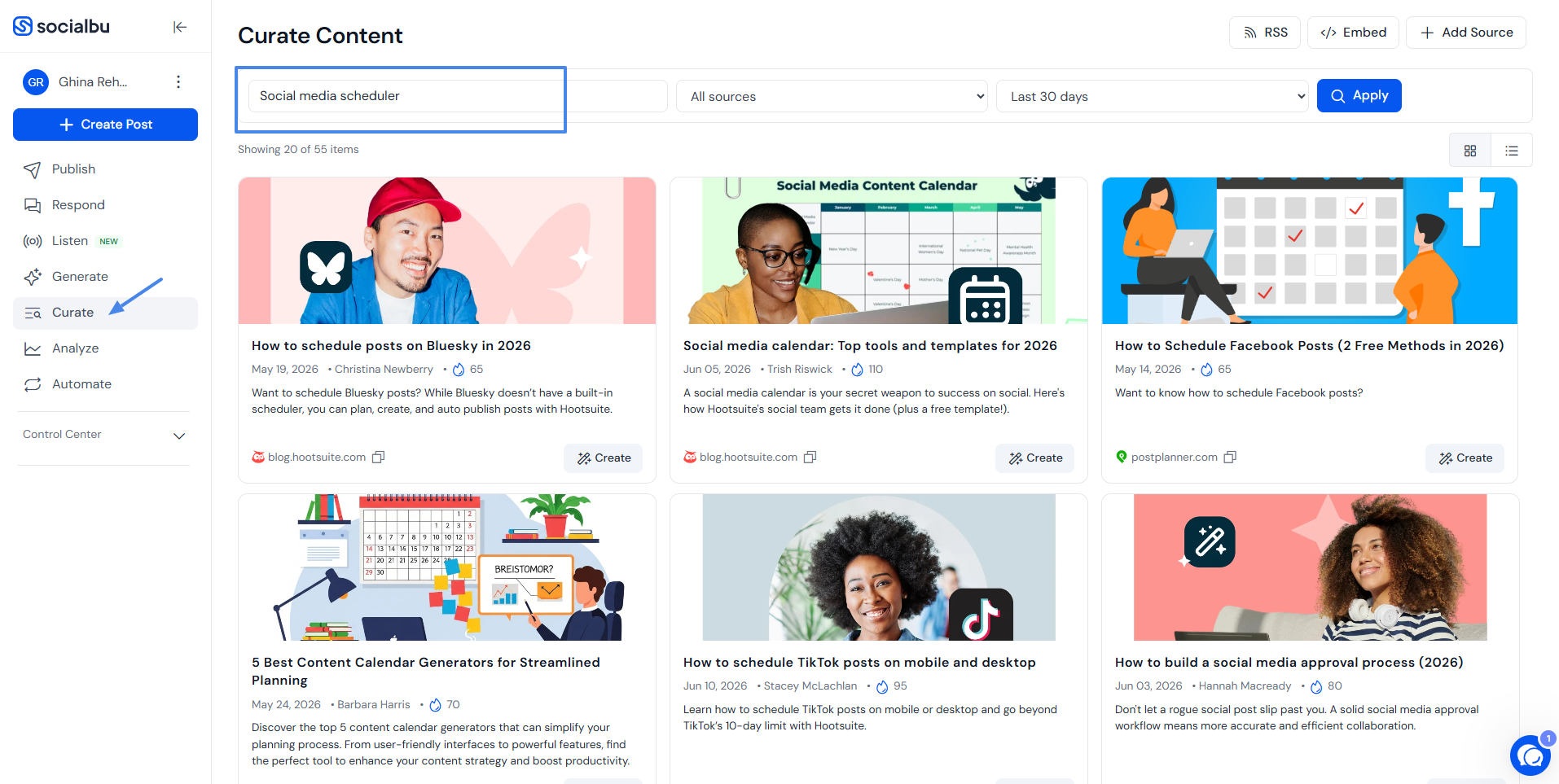
Click Curate in the left sidebar.
The Curate Content page shows article ideas from public, saved, and team sources available to your workspace.
Find content ideas
Use the filter bar at the top of Curate to narrow the feed.
Search content...: search by keyword, topic, brand, or industry term. Search works when you enter at least 3 characters. Suggestions can appear as you type.
Source filter: choose All sources, Public sources, My saved sources, or a team source.
Time range: choose Last 7 days, Last 14 days, Last 30 days, or Last 3 months.
Apply: refresh the results using the selected filters.
Use broader keywords and longer time ranges when results are too narrow. Use more specific keywords or a narrower source filter when results are too broad.
Review results
Each result can show the article title, source, publish date, author, score, image, and description. Open the original article to confirm it is useful, accurate, and appropriate for your brand before creating a post from it.
Use the view toggle to switch between Card view and Row view. SocialBu remembers your selected view for future Curate sessions.
If more results are available, Curate loads more as you scroll.
Create a post from curated content
When you find an article you want to use, click Create on that item.
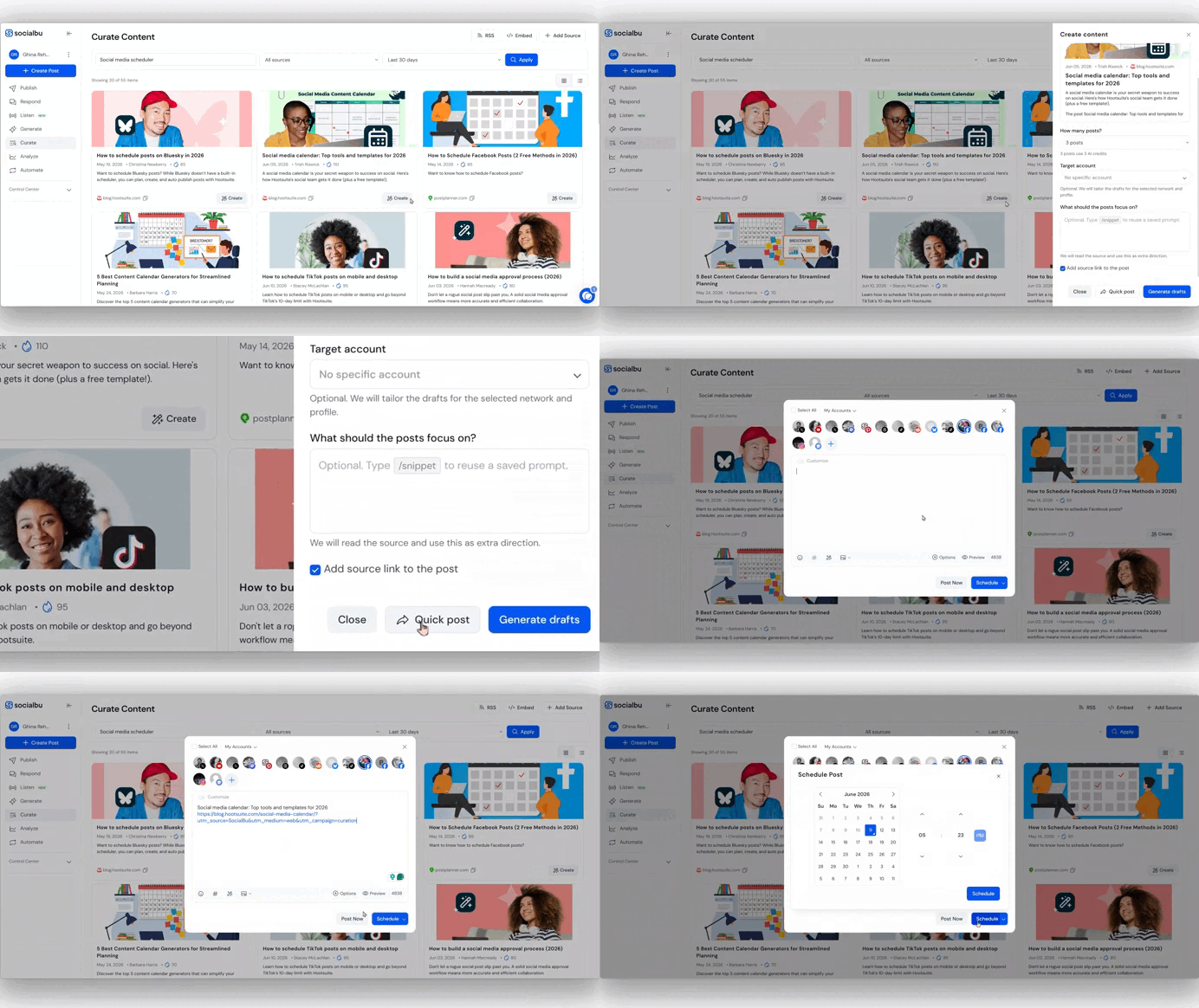
The Create content modal gives you two ways to continue:
Quick post: opens the post composer with the article title and source link.
Generate drafts: uses AI to create draft post options from the article.
When generating drafts, you can choose how many posts to create, select a Target account, add guidance, and decide whether to Add source link to the post.
You can type /snippet in the guidance field to reuse a saved prompt. Each generated draft uses AI credits, so the number of selected variations equals the number of credits used.
After drafts are generated, you can Copy a draft or click Create post to open it in the composer. Review and edit the final post before publishing or scheduling.
Add a source
Use Add Source to bring trusted blogs, publications, newsletters, or RSS feeds into Curate.
Click Add Source.
Paste the Source URL, such as a blog URL or feed URL.
Choose who can use it: Only me or one of your teams.
Click Add Source.
SocialBu will check the source for new content. If a source has no results, confirm that the URL is public, valid, and has recent content.
RSS and Embed
After results load, Curate can create output links based on the filters currently selected on the page.
RSS: copies an RSS link for the filtered Curate feed.
Embed: opens an embed modal where you can choose Cards or Rows, show or hide the SocialBu logo, preview the feed, and copy the embed code.
Teams and permissions
Team members can use Curate when the team owner has access to Curate and the member has Manage Curate permission.
Team sources appear in the source filter for members who can manage Curate for that team. Team snippets can also appear in the guidance field when the member has snippet access.
Plan and access notes
If Curate is missing from your workspace, the most common reasons are plan access, workspace selection, or role permissions.
Check that you are in the correct SocialBu workspace.
Ask an admin to confirm your team permissions.
Check whether your plan includes Curate.
If Curate is unavailable on your plan, upgrade from Settings > Subscription & Billing.
Troubleshooting
No ideas are showing
Use a broader keyword or clear the search.
Try a longer time range, such as Last 30 days or Last 3 months.
Switch from My saved sources to All sources.
Add a source you trust if your saved or team sources are empty.
Results are not relevant
Use more specific search terms, choose a narrower source filter, or add trusted sources that match your niche.
An article link does not open
The source may have removed the article, restricted it, or changed the URL. Choose another article if the link is not publicly accessible.
Generated drafts need changes
Edit the draft in the composer before publishing. You can adjust the caption, link, media, hashtags, account selection, and schedule.
Frequently asked questions
Does Curate post automatically?
No. You choose the article, create or generate the post, review it, and decide whether to publish or schedule it.
Can I add my own sources?
Yes. Use Add Source to add a blog, publication, newsletter, or RSS feed. You can keep it private or share it with a team.
Can I create AI drafts from a curated article?
Yes. Click Create, choose how many drafts to generate, add guidance if needed, and click Generate drafts.
Can I use Curate with teams?
Yes, if your team has Curate access and you have Manage Curate permission.
Should I review articles before sharing?
Yes. Always check the article quality, source, date, and relevance before publishing it to your audience.
Need help?
If you need help with Curate, contact SocialBu support at support@socialbu.com. Include the keyword or source you searched for, the filters you used, the article link if relevant, and a screenshot of what you are seeing.