Scheduling Posts Through SocialBu Calendar
Learn how to use SocialBu Calendar to view, filter, create, schedule, reschedule, summarize, and republish posts.
Written By Ghina Rehman
Last updated 17 days ago
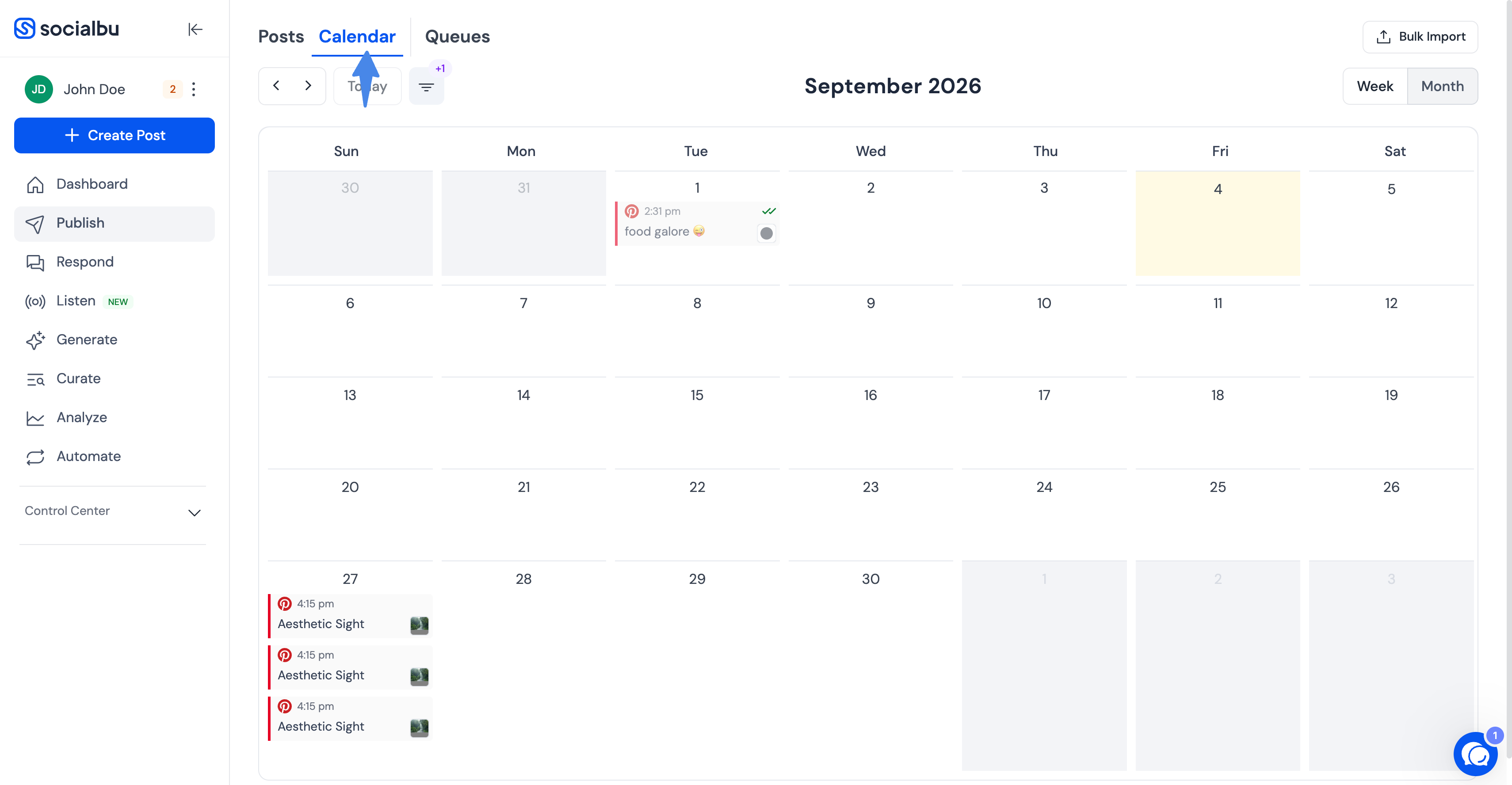
SocialBu Calendar gives you a visual way to review, create, and reschedule content from the Publish area. It shows scheduled, draft, awaiting approval, and published posts in one place.
Open the Calendar
Log in to SocialBu.
Go to Publish > Calendar.
You can also open the Calendar directly from https://socialbu.com/app/publish?view=calendar.
Switch calendar views
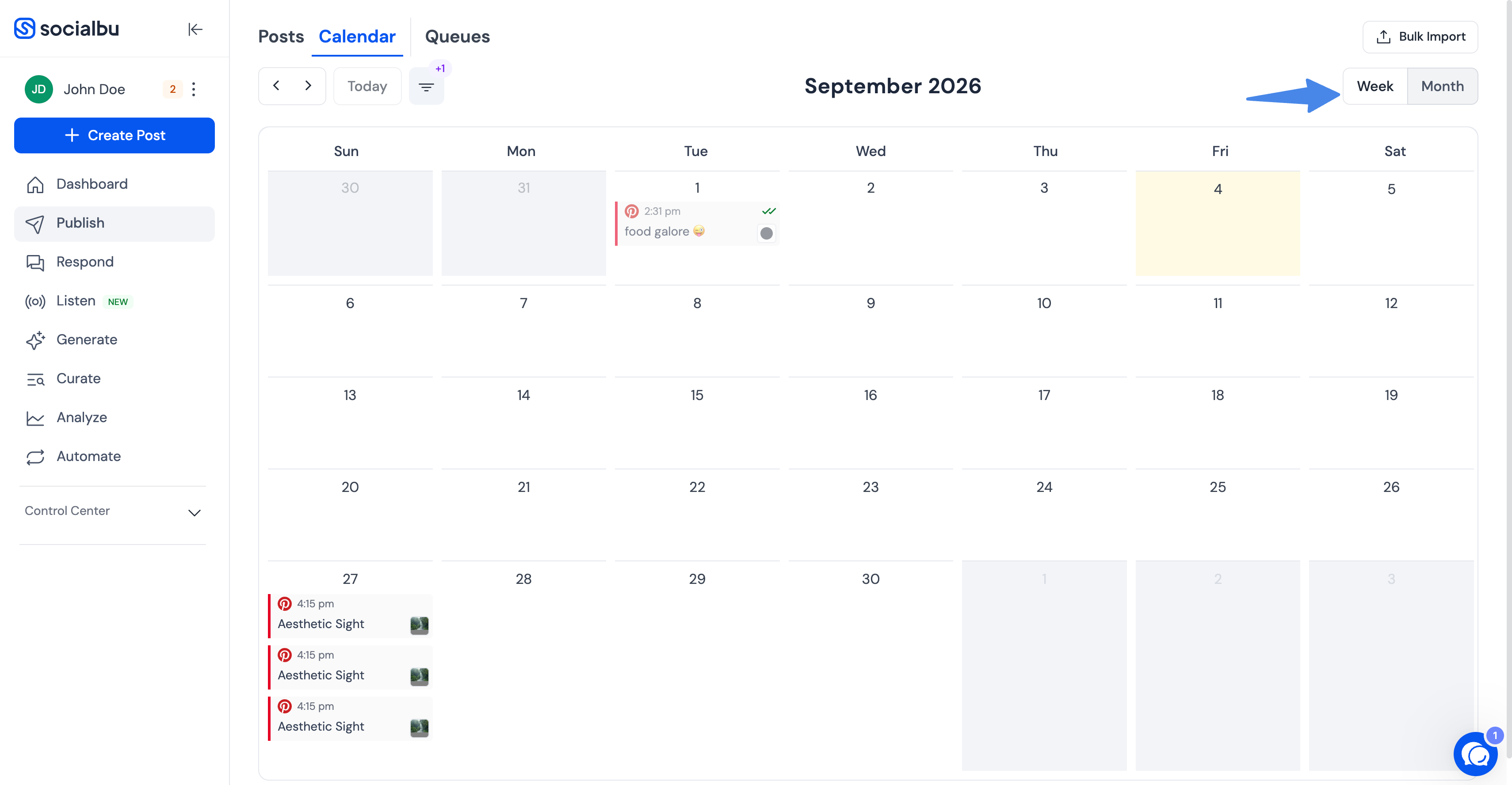
Use the view buttons at the top-right of Calendar to switch between Month and Week views. Month view is useful for planning a wider content schedule, while Week view gives more space to review posts inside a shorter date range.
What you can see in Calendar
Calendar can show these post states:
Scheduled: posts planned for a future time.
Draft: posts saved for later editing.
Awaiting Approval: team posts waiting for approval before publishing.
Published: posts already published through SocialBu.
Posts may show different labels, icons, colors, and media previews depending on their status, connected social account, and available calendar space.
Filter calendar posts
Use Calendar filters to narrow the view by team, social account, or user where those filters are available for your workspace. If posts disappear after filtering, reset or adjust the filters to view more posts.
Create a post from Calendar
Go to Publish > Calendar.
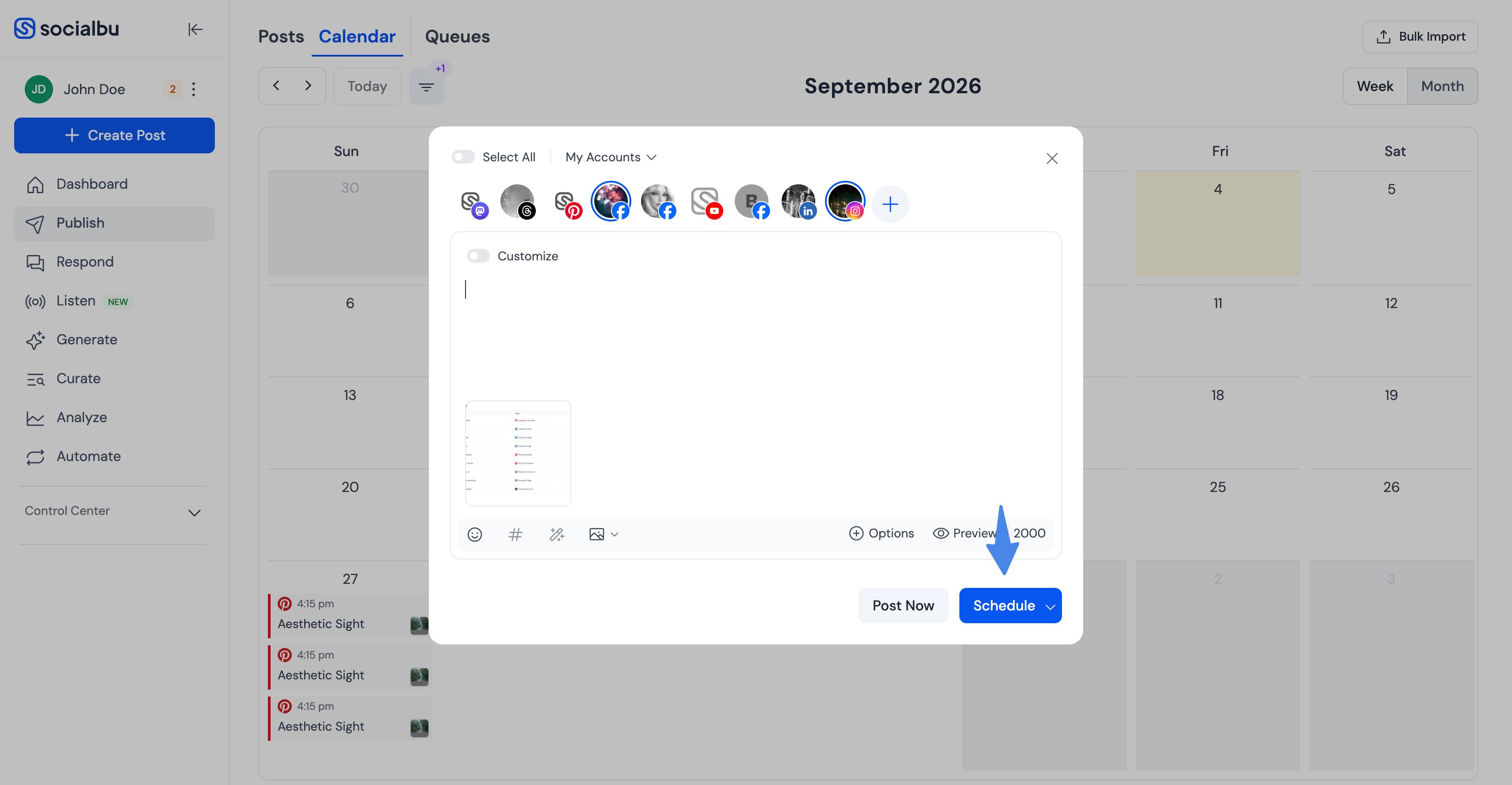
Click a current or future date on the calendar.
The Post Composer opens with that date selected.
Add your content, select the account or accounts, set the time, and choose Schedule.
If you click today's date, SocialBu opens the composer with the current time selected. Past dates cannot be selected for creating a new scheduled post.
View post details
Click a post on Calendar.
Review the post details in the pop-up.
Use the available actions, such as preview, edit, duplicate, republish, save as draft, approve, reject, or delete, depending on the post status and your permissions.
Edit or reschedule from Calendar
You can manage many unpublished posts directly from Calendar.
Click an editable post to open its details, then use Edit or Reschedule when available.
Drag a non-published editable post to another current or future date/time to reschedule it.
Published posts cannot be dragged or edited from Calendar.
Summary cards cannot be dragged. Click a summary card to view the posts behind it.
If you try to drag a post to a past date or time, SocialBu keeps the post at its original schedule. If another scheduled post already exists at the same time for the same account, SocialBu asks you to choose a different time.
Timezone and permissions
Calendar uses your SocialBu app/workspace timezone when showing and scheduling posts, so always confirm the date and time before saving important content.
The actions you see in Calendar depend on your permissions. For example, you may be able to view a post but not edit, delete, approve, or republish it if your team permissions do not allow that action.
Why posts may be missing from Calendar
No social accounts are connected, or the selected account is inactive or disconnected.
Filters for team, account, or user are hiding the post.
The post belongs to a team or account you do not have permission to view.
The post was created outside SocialBu, so it may not appear as a SocialBu scheduled, draft, awaiting approval, or published post.
A busy date may show a + more link or a summary card instead of every individual post. Open it to view the hidden posts.
Failed or errored posts may appear with error styling. Open the post details to review the available error information.
Media previews
Calendar can show media previews and media counts for posts with attachments, depending on the post type, media type, and available space. If a preview is not visible in the calendar grid, open the post details to review the post and its media.
Use summary cards on busy calendars
If your calendar has many posts in the selected date range, SocialBu may show summary cards instead of every individual post. These cards show counts by date and status, such as scheduled, draft, awaiting approval, or published.
Click a summary card to open the posts for that date and status. If there are many posts, use the pagination controls in the summary pop-up to move through them.
Republish a post from Calendar
Republishing helps you reuse already-published content without starting from scratch.
Find the published post you want to reuse.
Click the post to open its details.
Open the post's three-dot menu.
Select Republish.
Review the copied post in the composer, make any needed changes, choose a new date/time, and schedule it.
FAQs
Can I change the social accounts when duplicating or republishing a post?
Yes. You can choose different social accounts in the composer before scheduling the copied post.
Will the copied post keep the original schedule?
No. Choose a new date and time before scheduling it again.
Can I change the media before scheduling the copied post?
Yes. You can remove, replace, or add media before scheduling.
Can I schedule posts for multiple accounts at once?
Yes. While composing the post, select all social accounts you want to publish to.
Can I schedule posts in the past?
No. Calendar scheduling and drag-rescheduling work for current or future dates only.
Can I view posts created by my team members?
Yes, if your team permissions allow you to view those posts.
Can I edit a published post from Calendar?
No. Published posts cannot be edited from Calendar, but you can use Republish to create a new post from the published content.
Need further assistance?
If you have any other concerns or questions, email us at support@socialbu.com.