How to Bulk Upload Posts on LinkedIn?
Written By Ghina Rehman
Last updated 3 months ago
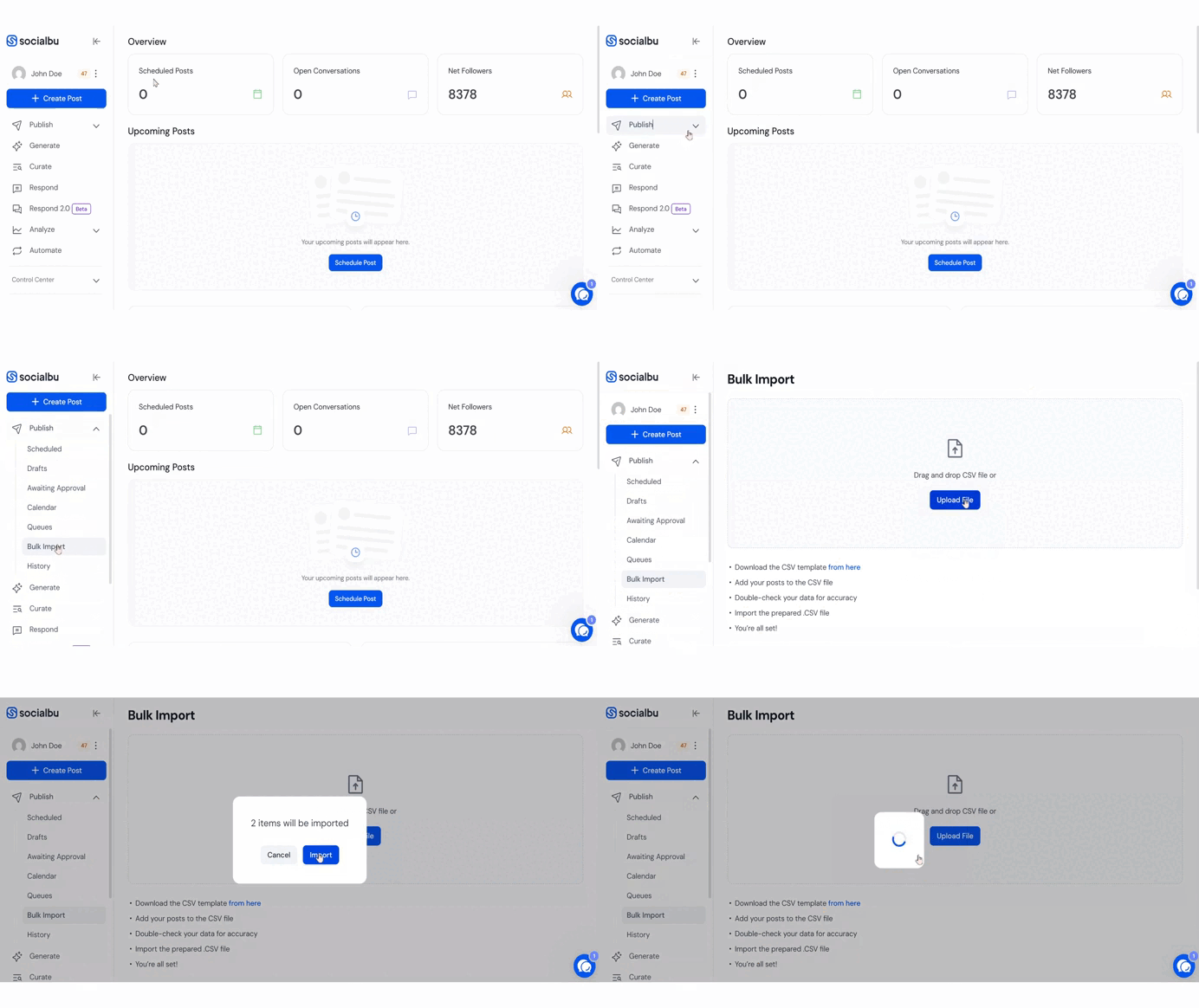
Navigate to Publish > Bulk Import.
Add your post details into the CSV template:
Content: The main body of your LinkedIn post
Media (optional): A direct and publicly accessible image/video URL
Account: The LinkedIn profile or page name connected to SocialBu
Publish At: Use the format dd/mm/yyyy hh:mm(am/pm) (e.g., 15/01/2025 11:45am)
First Comment (optional): Add a comment to be posted as the first comment. You may leave it blank for individual posts or remove the entire column if you don’t want to use it at all.

Save and Upload the File
Save the file as a CSV (UTF-8 encoded).
Return to Bulk Import, and upload the file.
A popup will display your scheduled posts from the file.
Click "Import" to finalize the process.
FAQs
Is the "First Comment" mandatory?
No. It’s completely optional. You can leave it empty for certain posts or remove the column entirely if you don't want to use this feature.
Can I add media to my LinkedIn posts?
Yes. Just paste a direct link to your image or video in the “Media” column.
How many posts can I upload at once?
You can upload up to 200 posts in a single CSV file.
Where can I see the scheduled posts after uploading?
Go to Publish > Scheduled to review and manage all upcoming posts.
Need Further Assistance?
If you have any other concerns or queries, email us at support@socialbu.com 📩