Allowing anyone to Add Social Accounts
In SocialBu, you can allow your teammates or clients to connect their own social media accounts without needing your login credentials. This is especially helpful when managing multiple accounts across different team members or clients.
Written By Ghina Rehman
Last updated 3 months ago
Step-by-Step Instructions
Log in to your SocialBu account
Go to socialbu.com and sign in with your credentials.
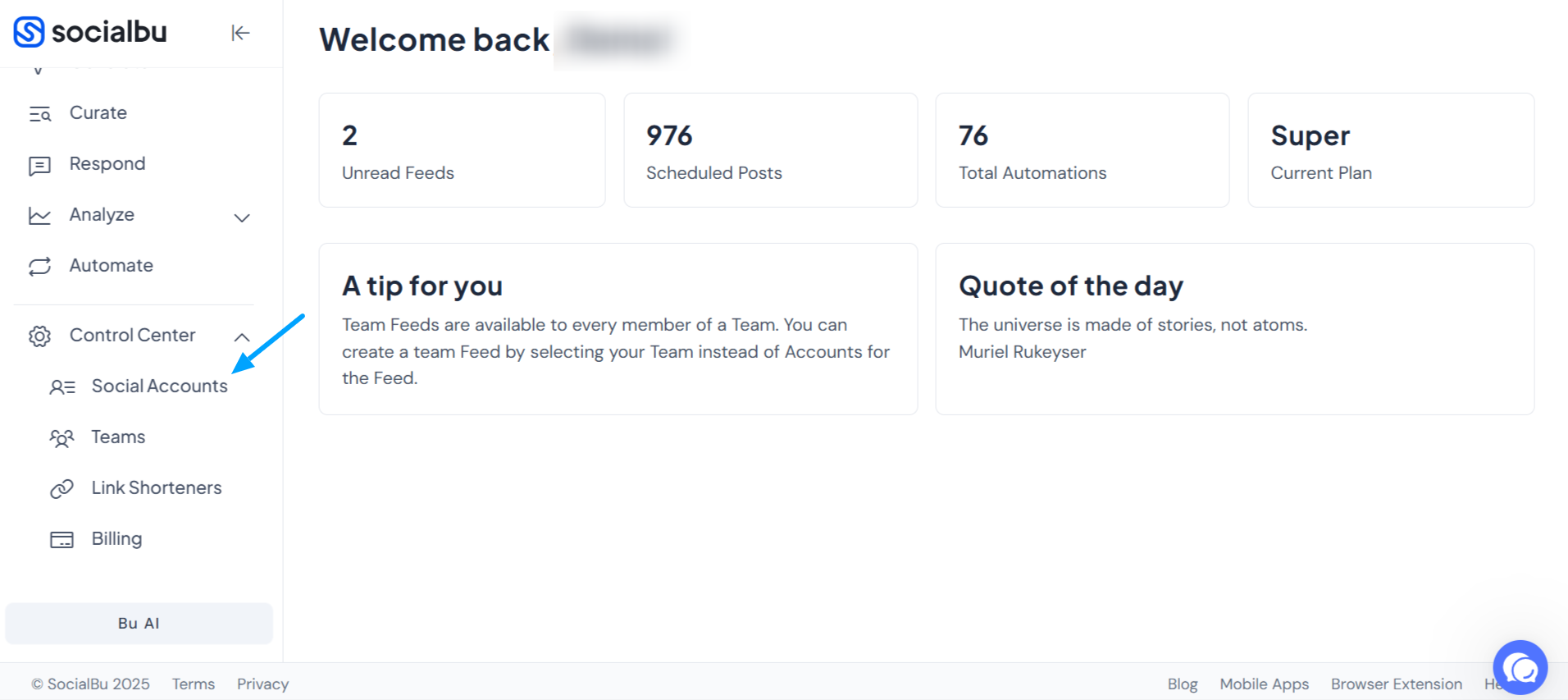
Go to Your Profile
Click on "Social Accounts" from the left menu.
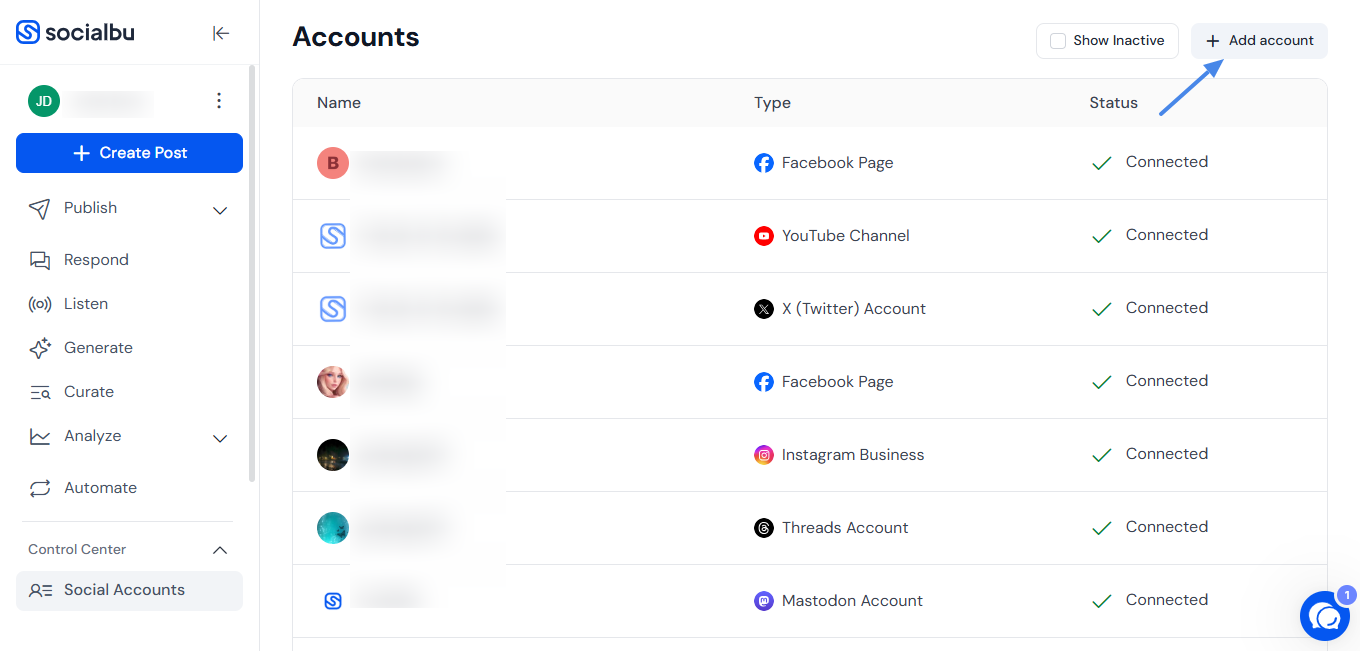
Click on "+ Add Account"
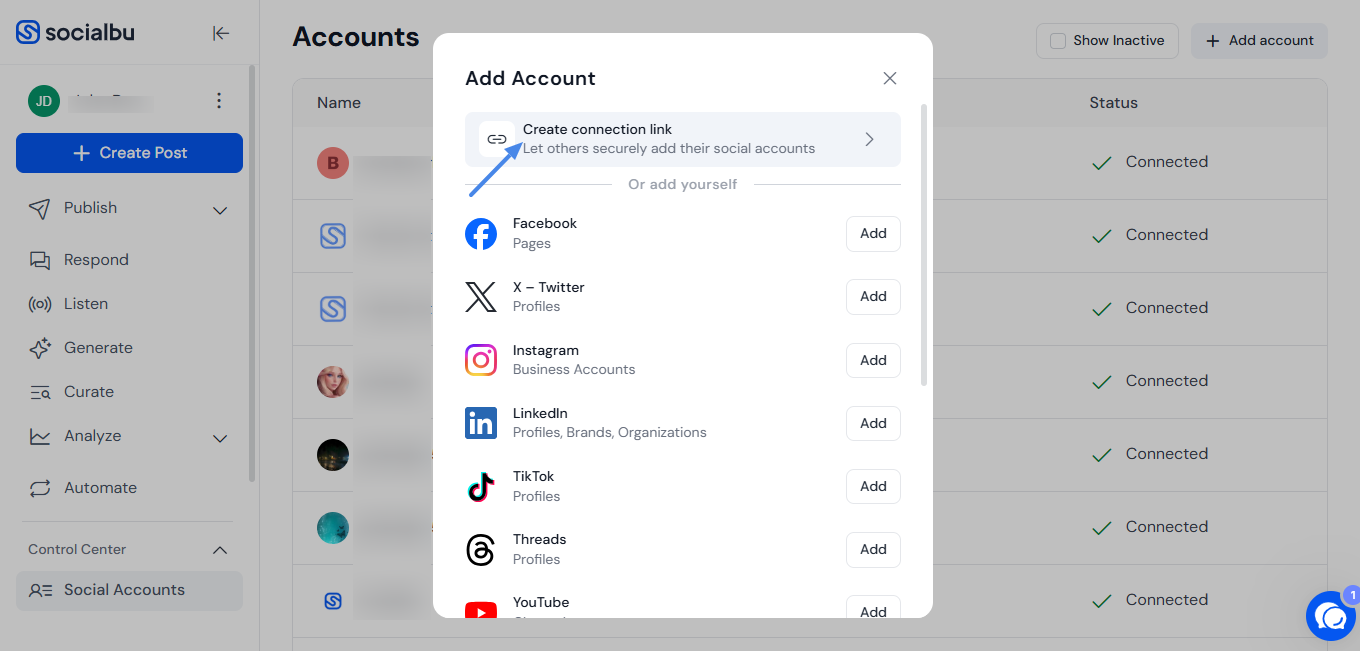
This will open a list of platforms that SocialBu supports, such as Facebook, Instagram, Twitter, LinkedIn, and more.
Select "Let someone else connect the accounts"
You'll now see a section that allows you to generate connection links for different platforms.
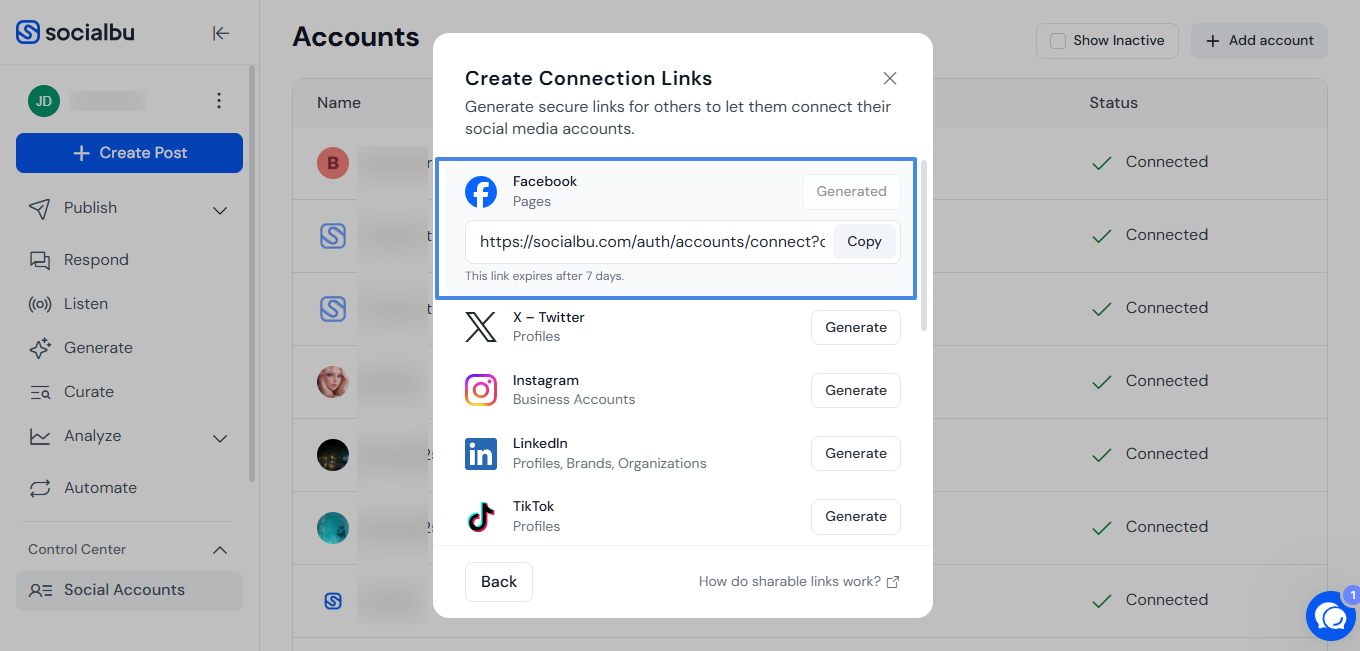
Generate a Connection Link
Click on the platform you want your teammate or client to connect (e.g., Facebook).
A unique, secure link will be generated.
Repeat this for other platforms as needed.
Share the Link
Send the generated link(s) to the teammate or client you want to connect to the account.
When they open the link, they’ll be redirected to the platform’s login page.
After logging in, they’ll grant the necessary permissions.
Once approved, the account will be added directly to your SocialBu workspace.
💡 Tips:
Make sure the person connecting the account has the appropriate admin or access rights on the social platform.
You can always revoke access later through your Social Accounts settings.
Need Further Assistance?
If you have any other concerns or queries, email us at support@socialbu.com 📩