Creating and managing a team in SocialBu
Learn how to create a SocialBu team, add social accounts, invite members, assign permissions, and manage team settings accurately.
Written By Ghina Rehman
Last updated 16 days ago
Teams in SocialBu help you collaborate with other people by sharing selected social accounts, assigning permissions, and controlling who can create, manage, approve, or view different parts of your workspace.
Use teams when you manage social media with coworkers, clients, agencies, departments, or approval-based workflows.
Before you start
You need at least one connected social account to create a team.
A team must include at least one social account.
Team and member limits depend on the team owner's SocialBu plan.
Members are invited by email and get access after accepting the invite.
If the invited person does not already have a SocialBu account, SocialBu can create an account for them during the invite flow.
Step 1: Open Teams
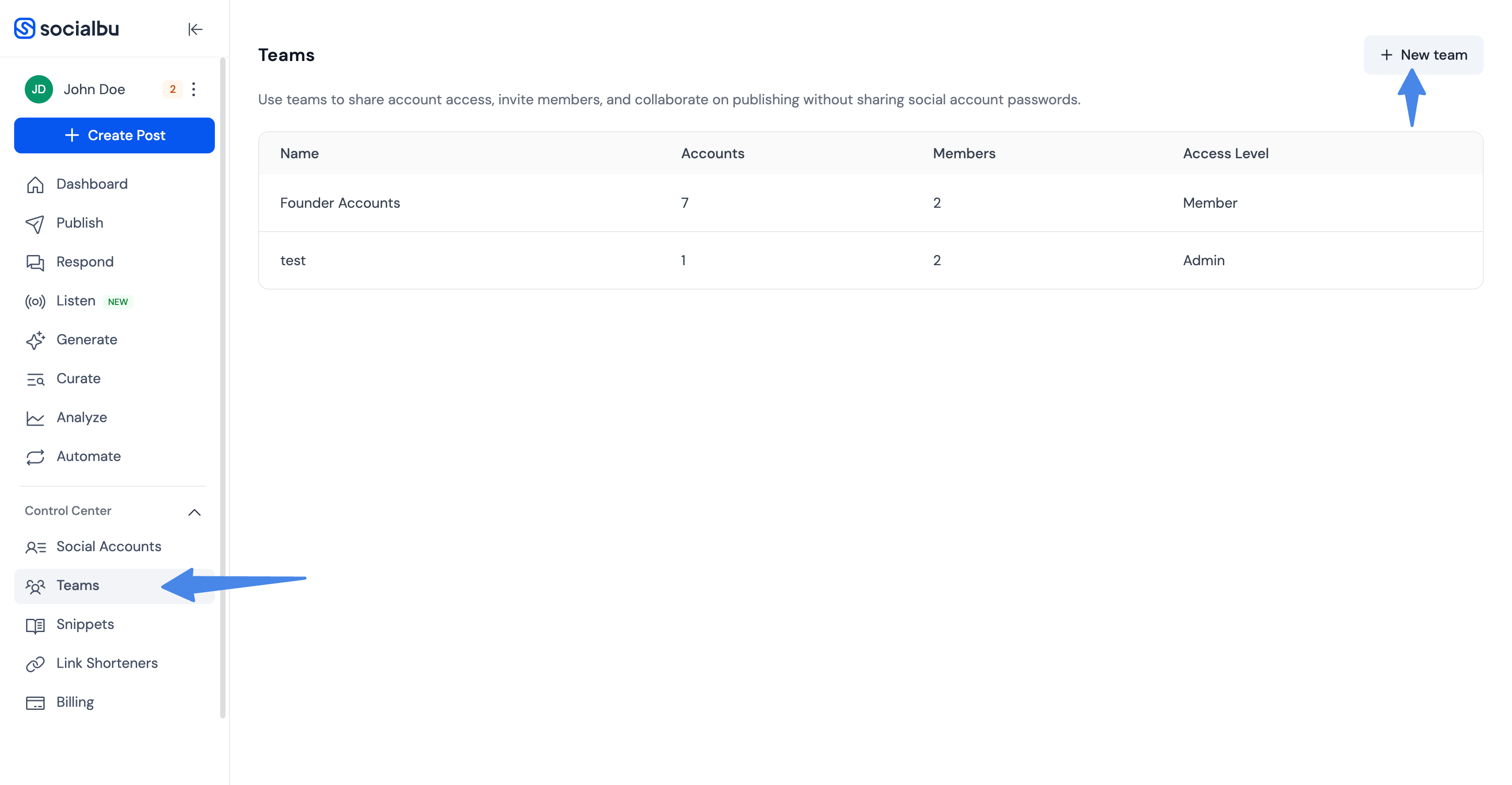
Log in to your SocialBu account and go to the Teams section from the left menu.
This page shows the teams you own, teams you have joined, and any pending team invitations.
Step 2: Create and name your team
Click New team or Create A Team.
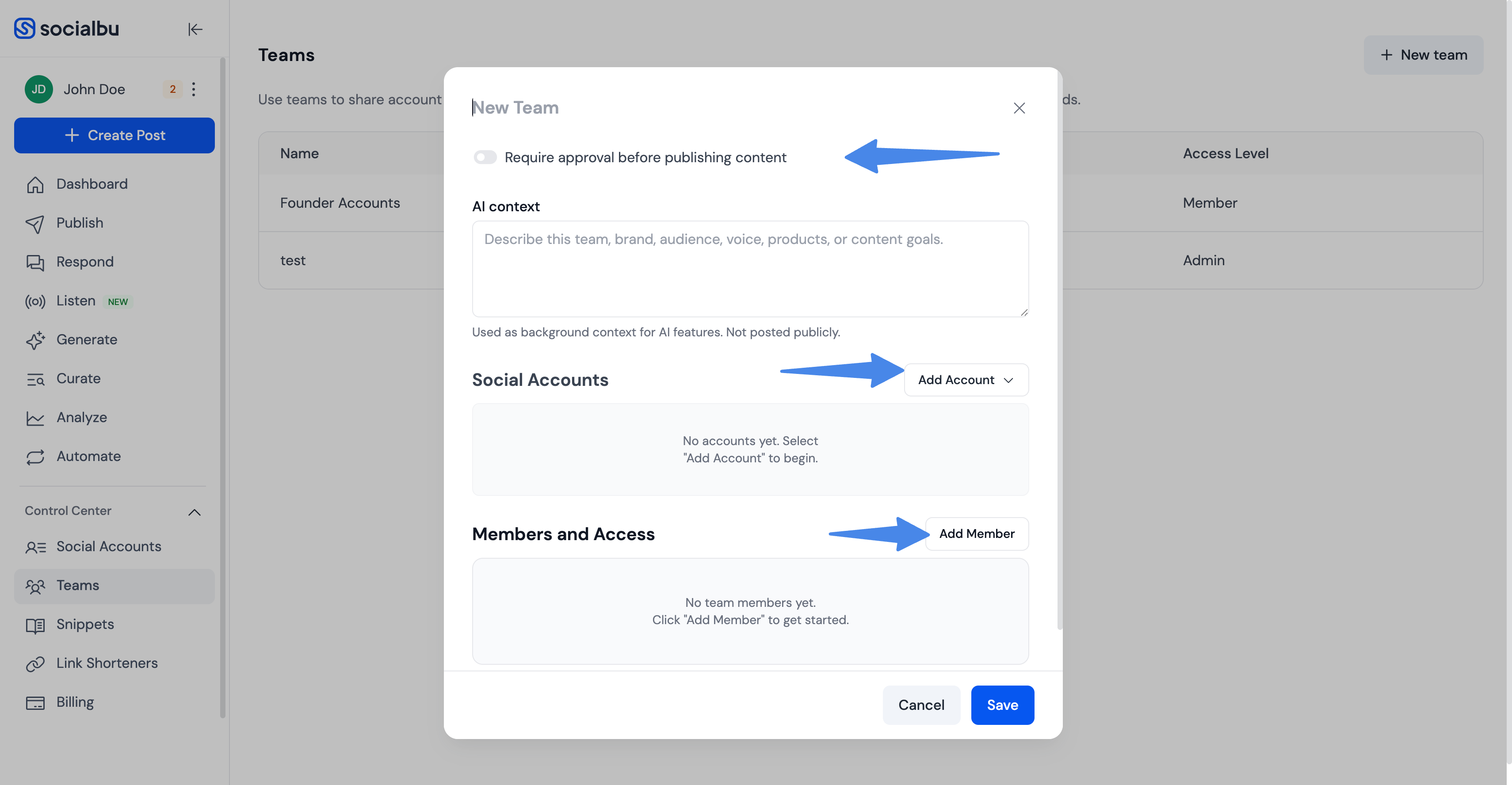
Enter a clear team name, such as a client name, department name, project name, or brand name. This helps members recognize which social accounts and workflows belong to that team.
Step 3: Add social accounts
Use Add Account to select the connected social accounts that should be available to the team.
Only add the accounts that team members need for their work.
Members can only work with accounts that are added to the team.
If an account becomes disconnected, a team admin may need to reconnect or remove it.
Step 4: Add members
Go to Members and Access and enter the email address of the person you want to invite.
You can add multiple members and assign different permissions to each person. Invited members will not have active access to the team until they accept the invitation.
Step 5: Assign permissions
Open the member's Permissions menu and select the actions they should be allowed to perform.
Permissions can control access to team settings, posts, drafts, post approvals, queues, generated content, analytics, automation, inbox, snippets, social listening, and Curate features.
Select only the permissions needed for the member's role.
Use Select All only when the member should have broad access.
Members without a permission will not be able to use that team feature.
The team owner has full access to their own team.
Step 6: Configure optional team settings
Depending on your workflow, you can also configure these team settings:
Require approval before publishing content: When enabled, posts from members without approval permission are sent for approval instead of being published or scheduled directly.
AI context: Add context that helps SocialBu's AI features generate content more aligned with the team, brand, or client.
Step 7: Save your team
After adding accounts, members, permissions, and settings, click Save.
Your team will be created or updated, and members will receive access based on the permissions you assigned after their invite is accepted.
Managing an existing team
You can return to the Teams section later to manage your team.
Depending on your access, you can:
Edit the team name.
Add or remove social accounts.
Invite new members.
Remove members who no longer need access.
Change member permissions.
Enable or disable approval before publishing content.
Update the team's AI context.
Review recent team activity where available.
Team admins can manage team settings when they have the required team management permission. The team owner can delete the team. Members who are not the owner can leave a team they joined.
Removing social accounts or members
You can remove social accounts or team members from an existing team if you are the team owner or have team management permission.
To remove a social account from a team:
Open the team from the Teams section.
Find the social account in the team's account list.
Open the account's three-dot options menu.
Click Remove.
Save the team changes.
Removing a social account from a team only removes that account from the team's shared access. It does not delete the social account from your SocialBu account.
To remove a team member:
Open the team from the Teams section.
Go to Members and Access.
Find the member you want to remove.
Open the member's three-dot options menu.
Click Remove.
Save the team changes.
Removing a member from a team removes their access to that team's shared accounts and team features. It does not delete their SocialBu user account.
Important notes
Adding someone to a team does not give them access to your billing, subscription, or private account settings.
Team members only get access to the team resources and features allowed by their permissions.
If a member cannot see or use a feature, check whether they have accepted the invite and whether the correct permission is enabled.
If a team cannot be created or another member cannot be added, your plan limit may have been reached.
FAQs
Can I change a member's permissions later?
Yes. You can edit a member's permissions from the team's Members and Access section.
Can I invite someone who does not already have a SocialBu account?
Yes. Team members are invited by email. If the person does not already have a SocialBu account, SocialBu can create one for them during the invite process.
Why can't a member access a team feature?
They may not have accepted the team invite yet, or they may not have the required permission for that feature.
Is there a limit to how many teams or members I can add?
Yes. Team and member limits depend on the team owner's SocialBu plan.
Troubleshooting
A member cannot access the team
Ask them to check whether they have accepted the team invitation. If they have accepted it, review their permissions in Members and Access.
A member cannot use a specific feature
Open their Permissions menu and make sure the required permission is enabled for that feature.
A social account is not visible to the team
Check whether the account was added to the team. Team members can only work with accounts that are included in that team.
A social account is disconnected
Reconnect the account or remove it from the team if it is no longer needed.
You cannot create another team or add more members
Your plan limit may have been reached. Team and member limits depend on the team owner's SocialBu plan.
Need help?
If you need help creating or managing a team, contact us at support@socialbu.com.