Understanding Team Performance in SocialBu Analyze
Learn how to use SocialBu Analyze to review team performance, track publishing activity, identify top members and posts, filter reports by team and date range, troubleshoot common issues, and export team reports.
Written By Ghina Rehman
Last updated About 1 month ago
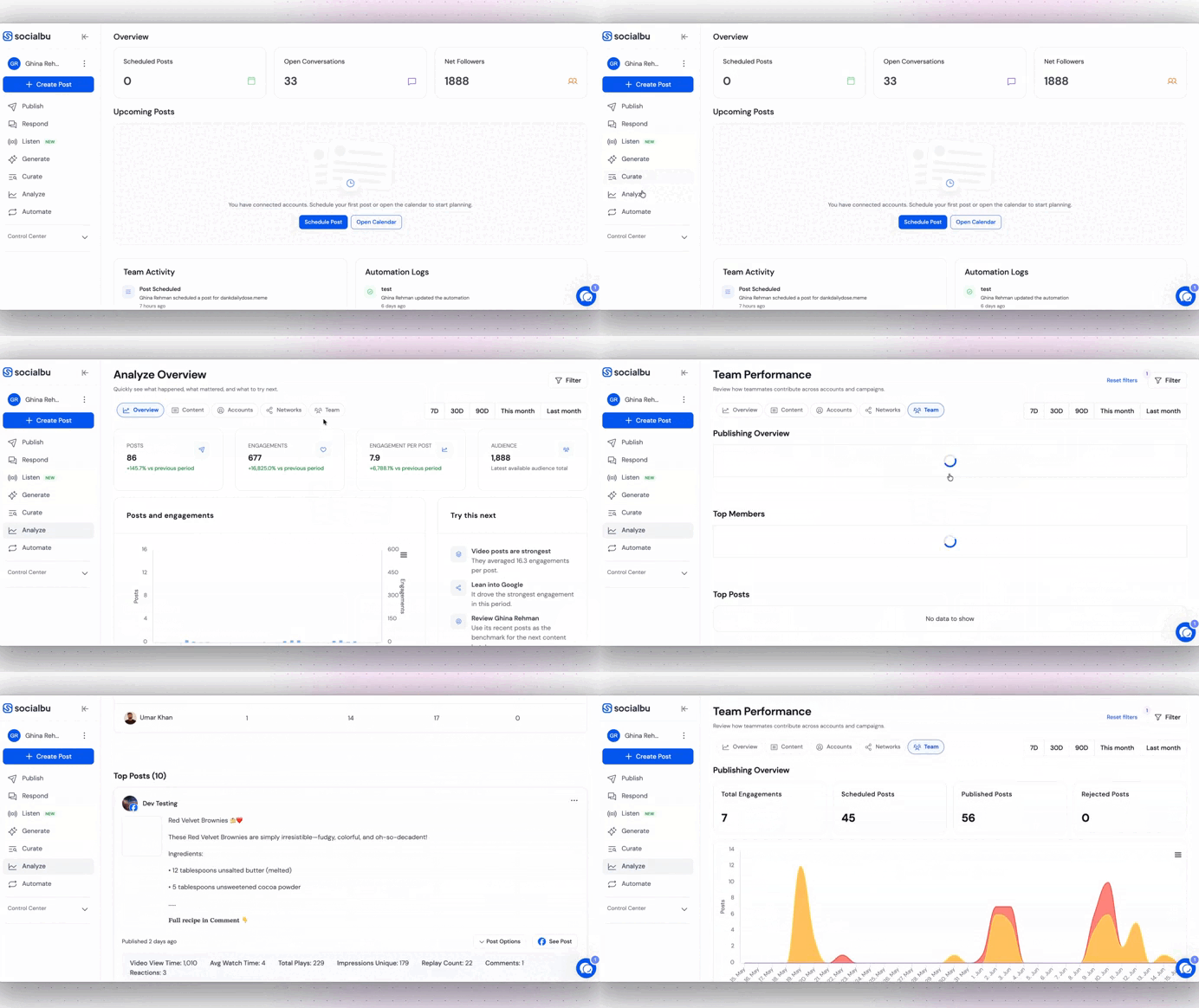
SocialBu’s Team Performance report helps you understand how your team is contributing to social media publishing and content performance. It gives you a clear view of team activity, published work, rejected posts, engagement results, top members, and top-performing posts.
Use this report when you want to review team productivity, identify strong contributors, understand which posts performed best, and improve your content workflow.
Before You Start
Make sure:
You are logged in to your SocialBu account.
Your workspace has teams set up in SocialBu.
Team members are creating, scheduling, approving, or publishing posts through SocialBu.
You have permission to view team analytics.
You have selected the correct team and date range in the report filters.
The available data may depend on your permissions, the connected social accounts, team activity, and the analytics data shared by each social platform.
How to Open Team Performance
Log in to your SocialBu account.
From the left-hand menu, go to Analyze.
Select the Team tab or Team Performance report.
Use the filter options to select the team and date range you want to review.
Click Apply to load the report.
The Team Performance report shows activity and performance for the selected team during the selected time period.
Filter the Report
Use filters to control what data appears in the report.
You can filter by:
Team: Select a specific team, or leave the team filter empty if you want to include all available teams.
Date range: Choose a start date and end date for the report.
Accounts or platforms: Where available, narrow the report by connected social accounts or platforms.
After setting the filters, click Apply. If the report does not update, refresh the page and apply the filters again.
Publishing Overview
The Publishing Overview section summarizes your team’s publishing activity and performance.
It may include:
Total engagement: The engagement earned from content published by the selected team.
Posts scheduled: The number of posts scheduled by team members.
Posts published: The number of posts successfully published to social platforms.
Posts rejected: The number of posts rejected during review or approval.
This section helps you understand the team’s workload, publishing output, approval flow, and content performance at a glance.
Top Members
The Top Members section highlights the team members with the strongest activity or performance during the selected date range.
Depending on the available data, this may include:
Engagement earned from posts they created or scheduled.
Number of posts scheduled.
Number of posts published.
Number of posts rejected.
Use this section to recognize high-performing members, identify team members who may need support, and review whether content responsibilities are balanced across the team.
Top Posts
The Top Posts section shows the top-performing posts created or published by the selected team.
This section can help you:
See which posts received the most engagement.
Understand which content types performed best.
Identify successful campaigns or topics.
Learn which contributors created high-performing posts.
Use proven content patterns for future planning.
Top posts are usually ranked by engagement or available performance data for the selected period.
View Monthly or Yearly Team Performance
You can use the date filter to create monthly, quarterly, yearly, or custom team performance reports.
To view a monthly report:
Open the filter panel.
Select the first day of the month as the start date.
Select the last day of the month as the end date.
Click Apply.
Example: For an April 2026 report, select April 1, 2026 to April 30, 2026.
To view a yearly report:
Open the filter panel.
Select January 1 as the start date.
Select December 31 as the end date.
Click Apply.
Example: For a 2026 yearly report, select January 1, 2026 to December 31, 2026.
View a Specific Team’s Performance
To view performance for a specific team:
Open the filter panel.
Click the Team dropdown.
Select the team you want to analyze.
Choose the date range.
Click Apply.
The dashboard will update and show metrics for the selected team. If you want to review another team, change the team filter and apply the report again.
Compare Team Performance
SocialBu may not show a side-by-side comparison for two teams in the same view. To compare teams manually:
Select the first team and date range.
Review or export the report.
Select the second team using the same date range.
Review or export the second report.
Compare the results side by side.
For accurate comparison, use the same date range and similar account/platform filters for each team.
Export or Save Team Reports
You can download available charts and graphs for reporting, presentations, or internal review.
Export formats may include:
PDF
PNG
JPEG
Before exporting, make sure the report has fully loaded and the correct team/date filters are applied.
How to Use Team Performance Data
Team Performance reports can help you answer questions such as:
How many posts did the team schedule or publish this month?
Which team members are contributing the most?
Which posts received the highest engagement?
Are posts being rejected often during approval?
Which team needs more support or training?
Which content types are working best?
Is team output improving over time?
Use this report during team reviews, campaign analysis, client reporting, and content planning meetings.
Common Questions and Troubleshooting
No data appears in the Team Performance report
This can happen if:
The selected team did not schedule, publish, or submit posts during the selected date range.
The selected date range is too narrow.
The wrong team is selected.
You do not have permission to view the selected team’s data.
The connected social accounts have no available analytics for that period.
Try selecting a wider date range, choosing another team, or asking an admin to check your team permissions.
A team is missing from the dropdown
If a team is not visible:
Make sure the team exists in your SocialBu workspace.
Confirm that you are in the correct workspace.
Check whether your role has access to that team.
Ask an admin to add you to the team or update your permissions.
A team member is missing from Top Members
A member may not appear if they did not create, schedule, publish, or have posts attributed to them during the selected period. They may also be missing if they no longer belong to the selected team or if your selected filters exclude their activity.
Try selecting a wider date range or checking a different team.
The post count looks different from what I expected
Post counts can vary depending on the selected date range, team, approval status, and whether you are counting scheduled posts, published posts, rejected posts, or all posts.
To review this more accurately:
Check that the correct date range is selected.
Confirm whether you are looking at scheduled, published, or rejected posts.
Make sure the post was created or handled by the selected team.
Check whether the post was moved, edited, rejected, or rescheduled.
Engagement numbers look different from the social platform
Small differences can happen because each social network calculates and shares analytics differently. Native platforms may show real-time or estimated numbers, while SocialBu displays the data available through official platform APIs.
To compare more accurately, use the same date range, same account, and same time zone where possible.
Posts were published, but engagement is zero
This can happen if:
The post did not receive interactions during the selected period.
The platform has not processed or shared engagement data yet.
The selected social platform does not provide that metric through its API.
The post was published very recently.
Wait for the platform to update analytics, select a wider date range, or check the post directly on the social platform.
Rejected posts are showing in the report
Rejected posts appear when posts go through the approval workflow and are rejected by a reviewer or team member. This can help managers identify content that needs revision or team members who may need clearer guidelines.
If a post is rejected multiple times, review the approval comments or feedback to understand what changed.
The report is empty after applying filters
Clear the filters and apply them again. Then try:
Selecting all teams or another team.
Choosing a wider date range.
Refreshing the page.
Checking your permissions.
Confirming that the team has activity in the selected period.
I cannot export or download the report
If export does not work:
Wait until the report has fully loaded.
Try a different export format if available.
Disable browser pop-up blockers for SocialBu.
Refresh the page and try again.
Try another browser.
If the issue continues, contact support with the team name, date range, browser name, export format, and a screenshot.
The chart or graph is not loading
This may be caused by a slow connection, browser cache, browser extension, or temporary analytics delay.
Try refreshing the page, clearing cache, disabling ad blockers or script-blocking extensions, or opening SocialBu in another browser.
Can I use this report for client reporting?
Yes. Select the client team, choose the reporting period, and export the available charts or graphs. For client reports, use complete reporting periods such as a full month or quarter.
Frequently Asked Questions
Can I export team performance reports?
Yes. You can download available charts and graphs in formats such as PDF, PNG, or JPEG for presentations, client reports, or internal reviews.
Can I compare two teams’ performance?
You can compare teams manually by applying the same date range to each team separately, exporting or reviewing each report, and comparing the results side by side.
Can I track multiple teams?
Yes. If you manage multiple teams, use the team filter to review each team’s performance separately.
Are team performance reports available to all team members?
Access depends on your SocialBu role and permissions. Admins and users with reporting access can view team performance data.
What platforms are included in the team report?
The report can include activity from connected social accounts available in your SocialBu workspace, depending on platform support and selected filters.
Are reports updated in real time?
Reports update based on SocialBu activity and the analytics data available from social platforms. Some platform metrics may take time to appear.
What does total engagement include?
Engagement can include interactions such as likes, comments, shares, reposts, clicks, and other platform-supported actions, depending on the social network.
Why are rejected posts included?
Rejected posts help teams understand review outcomes and improve content quality before publishing.
Can I see who created a top-performing post?
Where attribution is available, the report can help connect strong content performance with the team member or contributor responsible for the post.
Can I view performance for a custom date range?
Yes. Use the start date and end date filters to choose the exact reporting period you want to analyze.
Need Help?
If you cannot find the expected team data, contact SocialBu support at support@socialbu.com. Include the team name, selected date range, account/platform filters, and a screenshot of the report so the support team can help you faster.