How to remove or delete social accounts from SocialBu
Learn how to remove a connected social account from SocialBu and what to check before deleting it.
Written By Ghina Rehman
Last updated 3 months ago
Important: Removing a social account from SocialBu disconnects it from your workspace. Scheduled posts, analytics, and historical data linked to that account may be removed and cannot be restored from the dashboard.
If you no longer want to manage a connected social account in SocialBu, you can remove it from the Social Accounts section of your dashboard.
Before You Remove an Account
Posts scheduled for the removed account will no longer be available to publish from SocialBu.
The account will no longer appear in the composer, publishing, analytics, or account selection areas.
If you want to use the account again later, you will need to connect it to SocialBu again.
Remove a Social Account
1. Log in and open Social Accounts
Log in to your SocialBu account.
From the left-hand menu, go to Social Accounts.
You will see a list of all social accounts connected to your SocialBu workspace.

2. Select the account you want to remove
Click the social account that you want to delete or remove from SocialBu.
Review the selected account carefully before continuing.
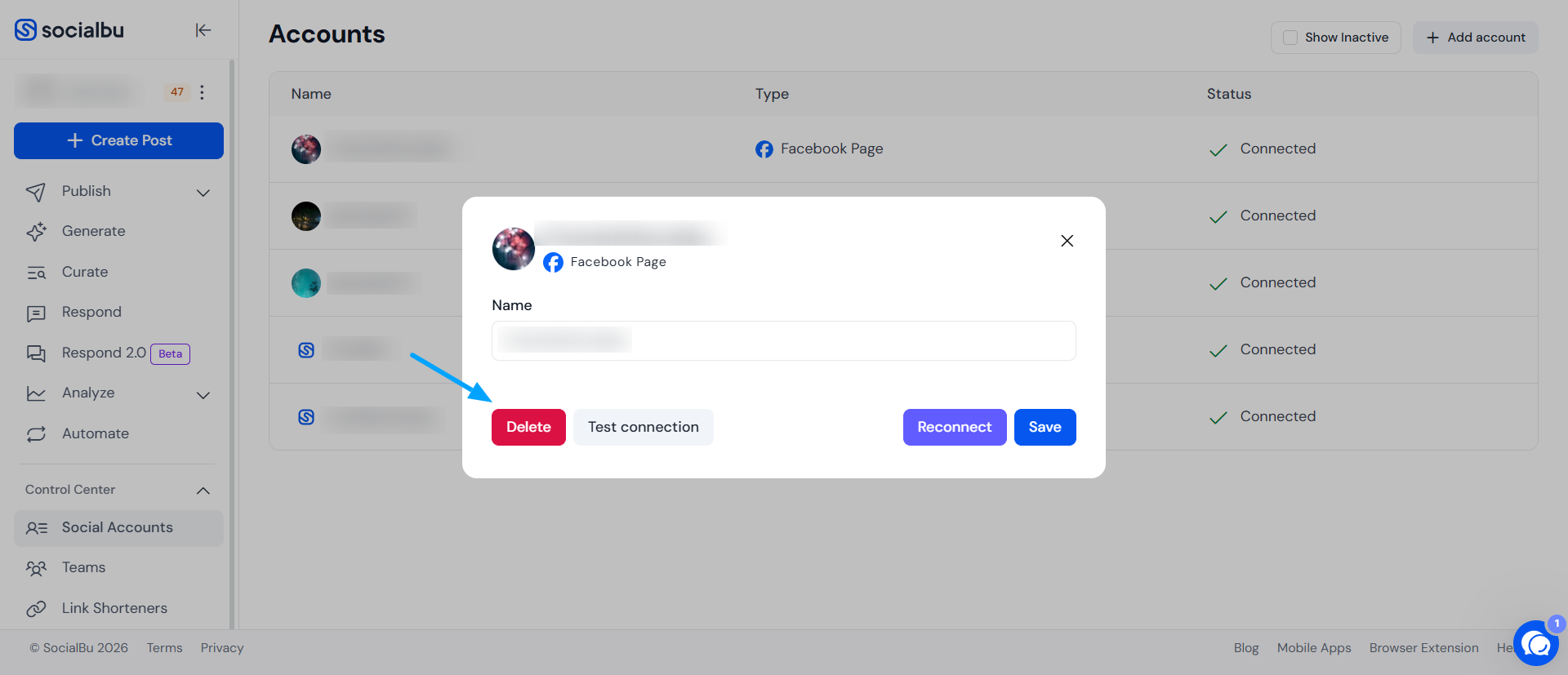
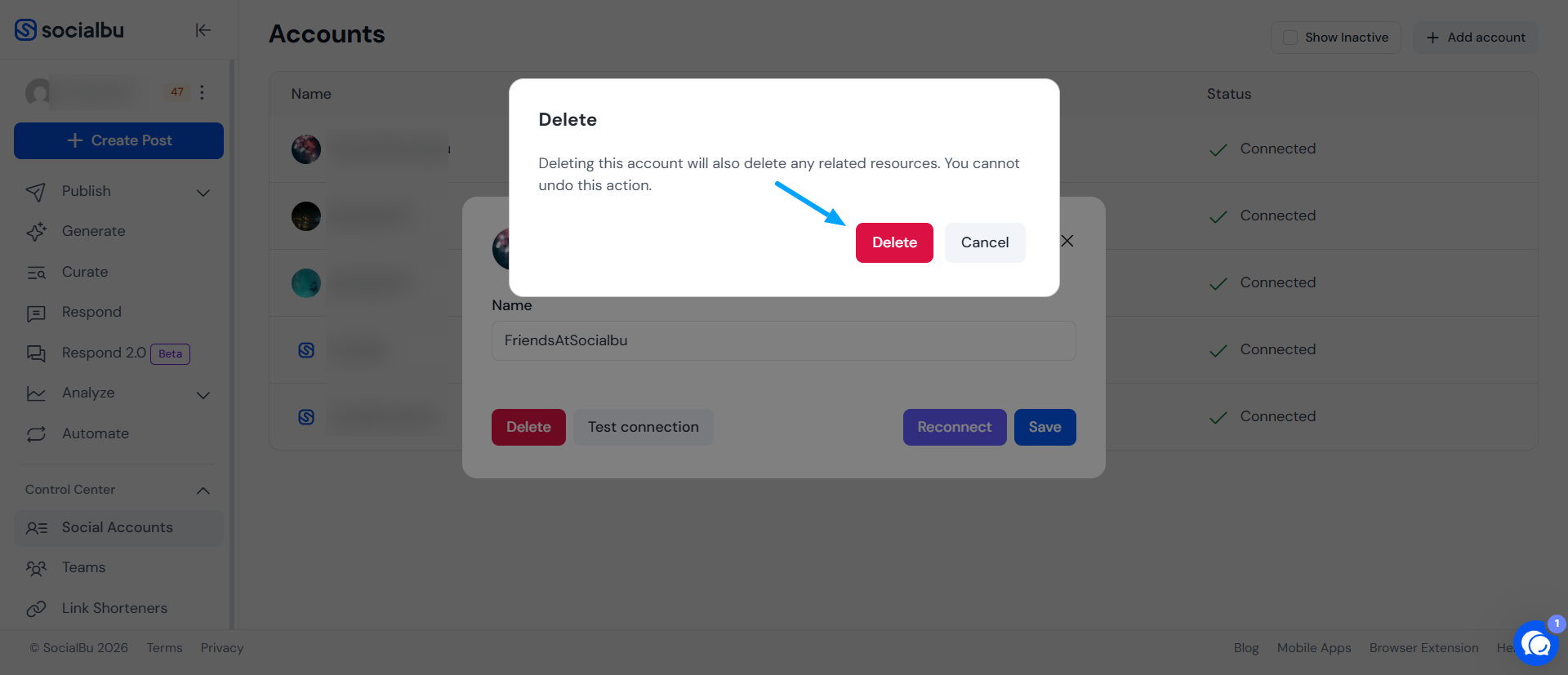
3. Confirm the deletion
A confirmation prompt will appear before the account is removed.
Confirm only if you are sure you want to disconnect this account from SocialBu.
Need Help?
If you are unsure whether you should remove an account, or if you face any issue while deleting it, contact us at support@socialbu.com. Our support team will be happy to help.