Complete Guide to the Listen Feature in SocialBu
Learn how to use SocialBu Listen to monitor online conversations, track brand mentions and competitors, find opportunities, and engage from one organized workflow.
Written By Umar Khan
Last updated 21 days ago
SocialBu Listen helps you monitor online conversations that matter to your brand, industry, competitors, and customers. Instead of manually checking different platforms one by one, you can create listening streams with Search Queries, choose Sources, customize queries per platform, and use AI Analysis to review matching conversations from one place.
How to create a Listen stream
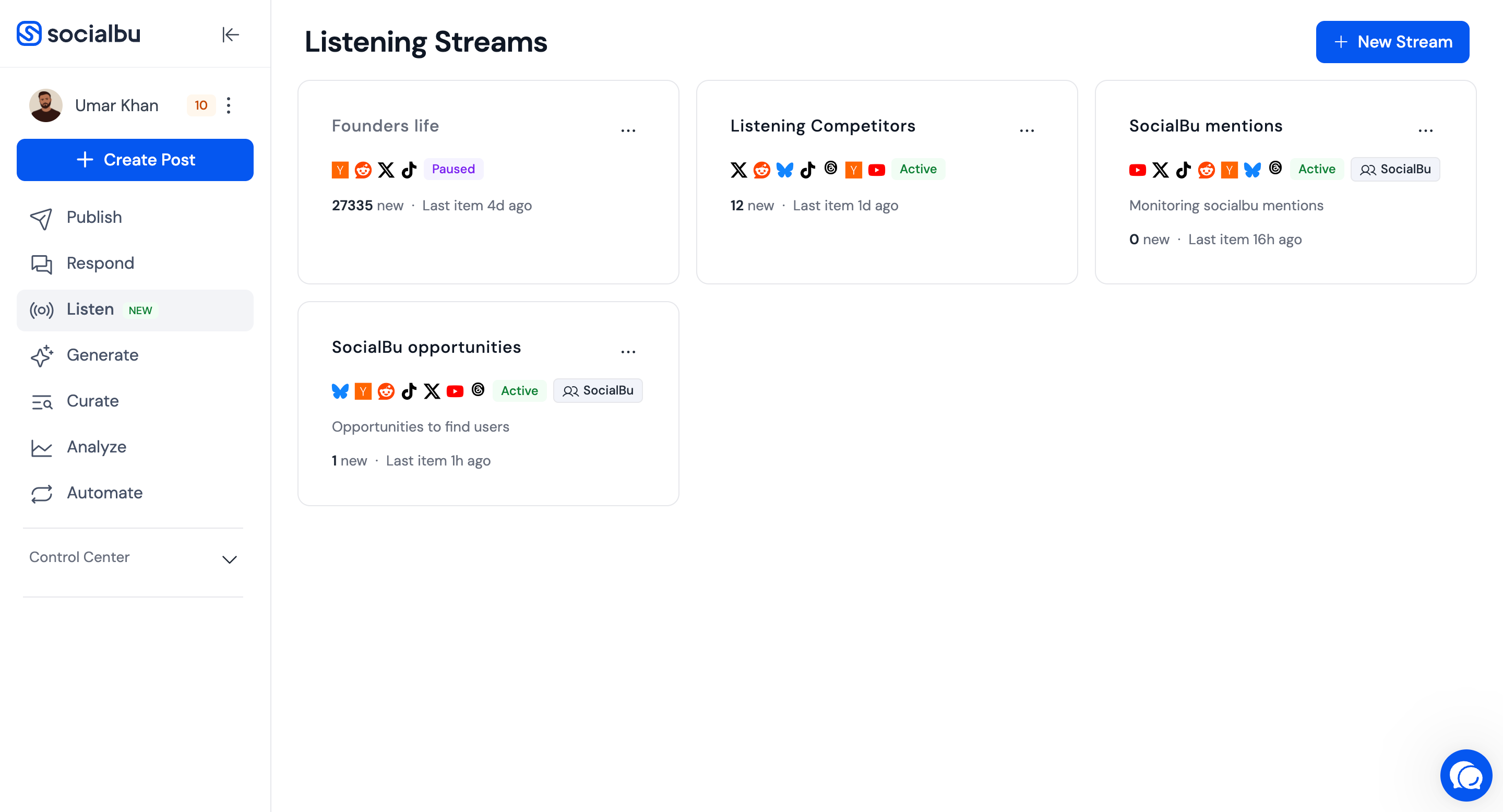
Open Listen from your SocialBu workspace.
Click New Stream or Create first stream.
Give the stream a clear name based on the goal, such as “Competitor mentions,” “Brand mentions,” or “Lead opportunities.”
Use Search Queries to add the keywords or phrases you want SocialBu to track.
Select the Sources you want to monitor.
Turn on Customize queries per platform if a source needs its own query wording.
Use AI Analysis if you want SocialBu to filter results, analyze sentiment, or generate tags.
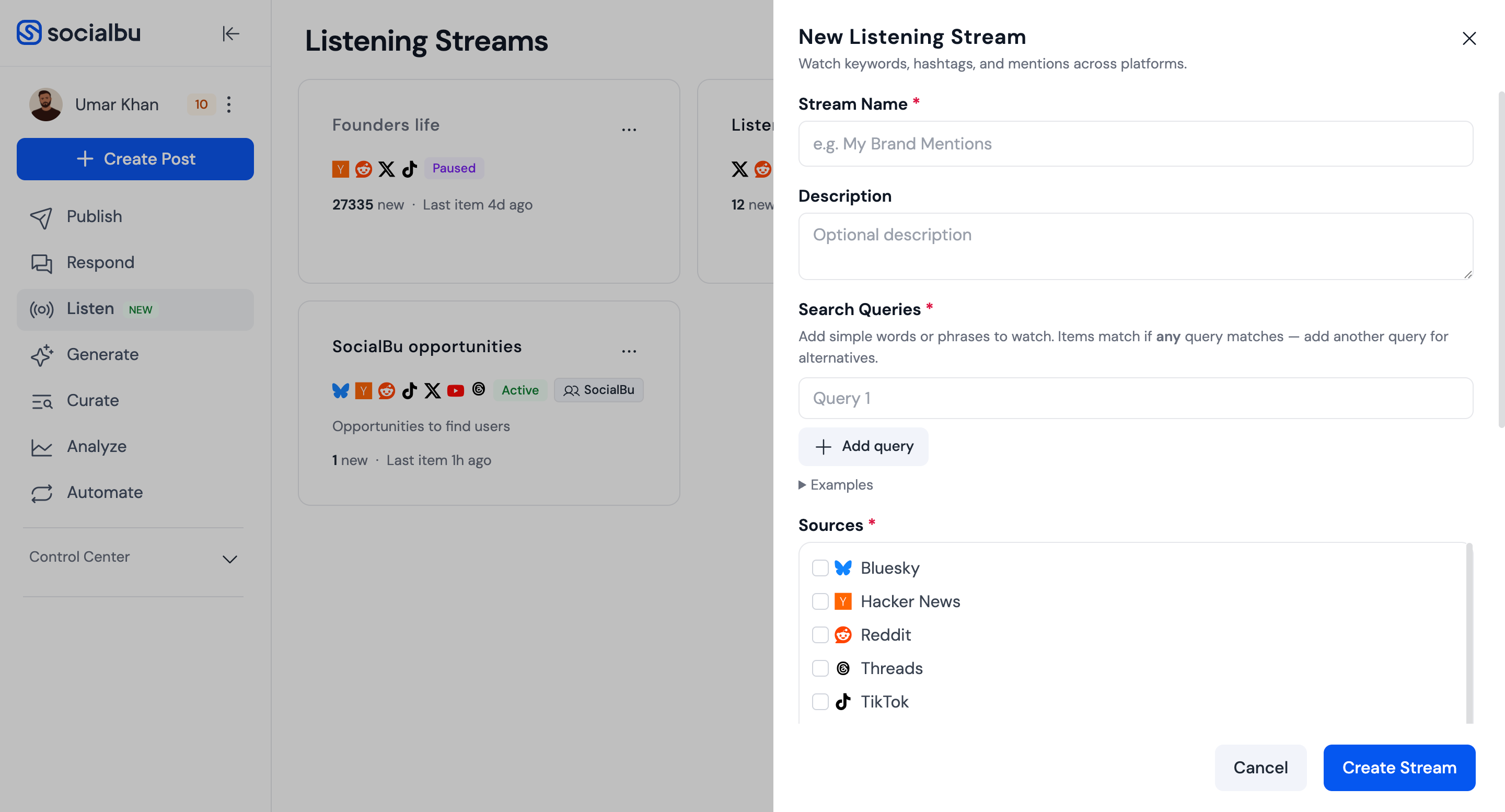
Review the stream settings, then click Create Stream. The stream starts collecting matching items after it is active.
Once the stream is active, matching conversations will appear in the stream whenever SocialBu finds posts that match your setup.
What you can do with Listen
Track conversations around your brand, product, competitors, or industry.
Create separate streams for different goals, such as competitor monitoring, brand monitoring, founder topics, or lead discovery.
Filter conversations by search text, platform, status, and date range.
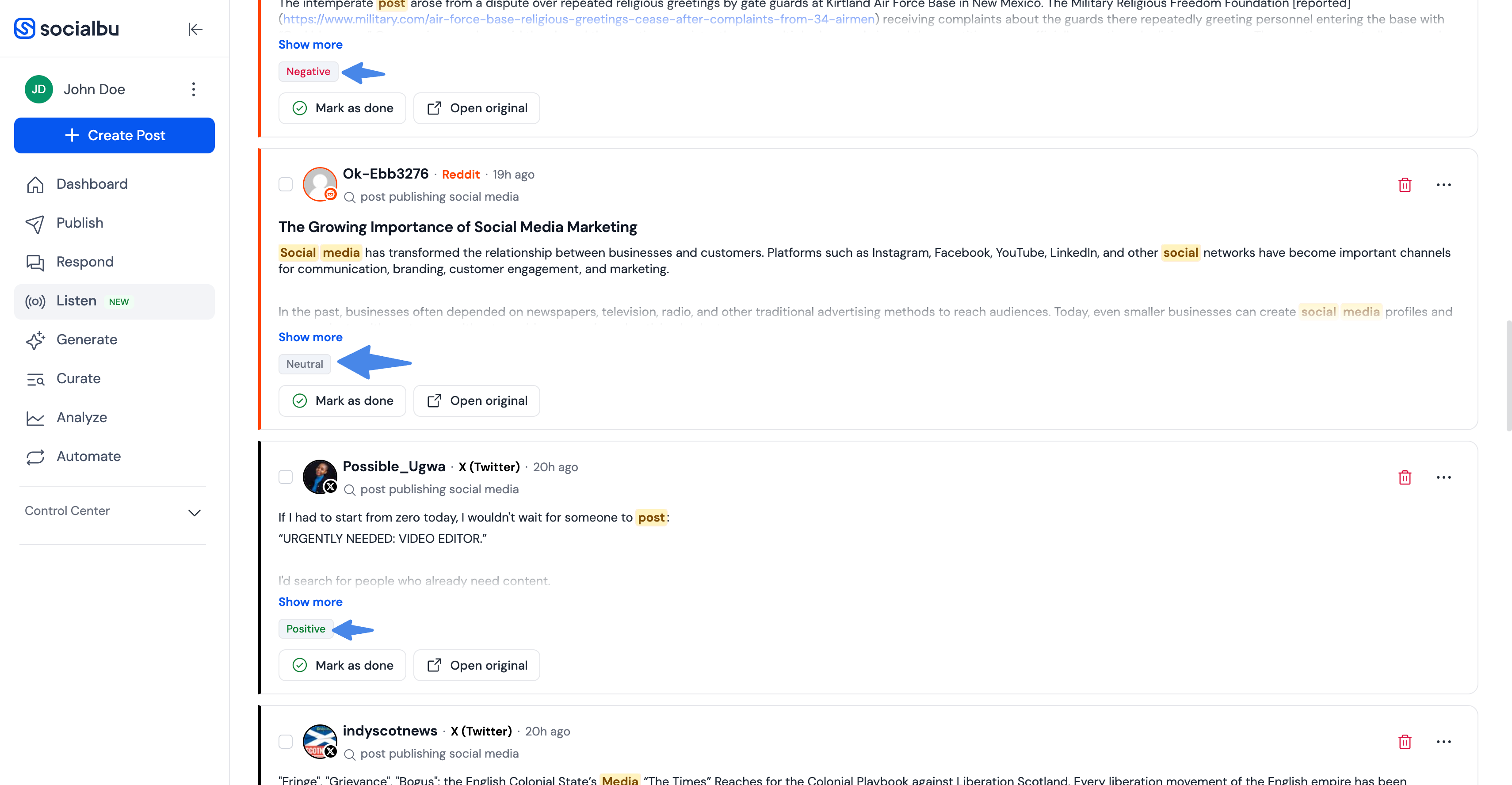
Use AI filtering and sentiment analysis to quickly understand which posts need attention.
Open the original post and join the conversation directly on the source platform.
Mark conversations as done after reviewing or replying.
Use daily digests to stay updated without checking the stream constantly.
Common ways to use Listen
1. Monitor your brand mentions
Create a stream for your brand name, product name, common misspellings, and branded keywords. This helps you catch positive mentions, complaints, questions, and support-related conversations as they happen.
2. Listen to competitor conversations
Create streams for competitor names, product names, or comparison terms. This can help you understand what people like, dislike, or ask for when talking about similar tools.
3. Find sales and engagement opportunities
Track keywords that signal buying intent, such as people asking for recommendations, alternatives, agencies, tools, or solutions in your industry. For example, a post asking for a social media management tool can become a direct opportunity to join the conversation.
4. Follow industry topics
Use Listen to keep up with conversations around your niche, market, or audience. This is useful for content ideas, product feedback, trend discovery, and understanding customer language.
5. Track founder or community conversations
If you care about a specific audience, role, or community, create a stream around that topic. For example, founders can monitor founder-life conversations, startup discussions, or problems other founders are sharing online.
If a stream returns too many unrelated results, narrow the keywords or add more specific phrases. If it returns too few results, broaden the keywords or add more sources.
Supported sources
Listen can monitor these sources when they are available in your workspace:
Bluesky
Reddit
Threads
TikTok
X (Twitter)
YouTube
Stream actions
On the Listening Streams page, each stream has an actions menu. Use it to:
Pause an active stream when you want to stop collecting new items temporarily.
Resume a paused stream when you want it to start collecting again.
Delete a stream when you no longer need it. Deleting a stream also deletes its saved items and cannot be undone.
Item filters
Inside a stream, use filters to focus on the items you need:
Search: find items by text. Search works best with at least 3 characters.
Platform: show items from one selected source.
Status: switch between Active, Done, or all statuses.
Date range: use the From and To fields to review items from a specific period.
Use Clear to remove filters and return to the default stream view.
Item actions
Each Listen item includes actions to help you review and clean up conversations:
Open original: open the matched post on the source platform so you can reply or review it in context.
Mark as done: move an active item out of your default active view after you have reviewed it.
Unarchive: move a done item back to the active view if it still needs attention.
Copy text: copy the item text for notes, replies, or sharing with your team.
Copy link: copy the original post link when a permalink is available.
Delete: remove an item from the stream. Deleted items cannot be restored.
Bulk actions
When you need to process multiple items quickly, use the bulk toolbar inside a stream:
Select visible: select the items currently shown on the page.
Mark done: mark selected active items as done.
Delete: delete the selected items.
Mark all done: mark every active item in the stream as done, across all pages.
RSS feed and Embed
Some streams include sharing options in the stream menu:
RSS feed: open a feed of the latest items from that Listen stream.
Embed: generate an embed code for showing stream items outside SocialBu. You can choose which item status to show and whether to display SocialBu branding.
Daily Digest
In a stream's Settings, you can turn on Daily Digest to receive an email summary of new items.
For team streams, you can choose digest recipients from team members who have Listen access.
Team permissions
Team access depends on Listen permissions:
View Social Listening: lets a team member view team Listen streams and items.
Manage Social Listening: lets a team member create, edit, pause, resume, and delete team Listen streams and manage stream items.
Plan and quota limits
Listen availability and limits depend on the plan for the stream owner or team owner.
Some plans do not include Listen. If Listen is not available, SocialBu will ask you to upgrade.
Each plan can limit how many Listen streams you can create.
Each plan can also limit how many matching listening items can be collected per month.
If the monthly item quota is reached, existing items remain available, but new matching items will appear after the quota resets or the plan is upgraded.
How to engage with a conversation
Open the Listen stream.
Review the matched post and its sentiment.
If the conversation is relevant, click Open original.
SocialBu will take you to the original post on the source platform.
Reply, engage, or take action directly on that platform.
Return to SocialBu and mark the item as done when you have finished reviewing it.
Marking items as done helps keep your stream clean and makes it easier to focus on new conversations.
Using AI filtering and sentiment
Listen can help analyze conversations so you do not have to manually read every post in detail. AI filtering and sentiment analysis can help you identify which conversations are worth reviewing first.
Use sentiment to spot complaints, praise, and neutral mentions quickly.
Use AI filtering to reduce noise and focus on conversations that match your goal.
Use Generate tags to add short AI labels such as complaint, competitor, or buying intent.
Daily digests help you keep track of what happened during the day without opening every stream repeatedly. Use digests to review important mentions, opportunities, or trends at a regular time.
Example workflow
Suppose you want to find people looking for a social media management tool.
Create a stream called “Social media tool opportunities.”
Add keywords such as “looking for social media management tool,” “best social media scheduler,” “social media agency tool,” and “alternative to [competitor name].”
Select sources where your audience is likely to talk, such as Reddit, X/Twitter, Threads, or other available sources.
Review new matched posts each day.
Open relevant posts, reply on the original platform, and mark them as done in SocialBu.
This workflow helps you turn public conversations into real engagement opportunities.
Troubleshooting
I am not seeing any results in my stream
Check that your keywords are not too narrow.
Add more related phrases or alternative spellings.
Make sure you selected the sources you want to monitor.
Give the stream some time to collect matching conversations.
I am seeing too many unrelated results
Use more specific phrases instead of broad single words.
Add filters to narrow results by source or sentiment.
Create separate streams for different topics instead of mixing many goals together.
The original post does not open
The post may have been deleted, made private, or restricted by the source platform.
Try opening the item again later.
If the issue continues for many posts, contact SocialBu support with examples.
Sentiment looks incorrect
Sentiment analysis is designed to help with quick prioritization, but online conversations can be complex. Always review the original context before replying or making decisions.
Frequently asked questions
Can I create more than one Listen stream?
Yes. Creating multiple focused streams is recommended. For example, you can create separate streams for brand mentions, competitors, opportunities, and industry topics.
Can I reply directly from SocialBu?
Listen helps you find and review conversations. To reply, click Open original and engage with the post on the original platform.
What should I track first?
Start with your brand name, competitor names, and a few opportunity keywords related to your product or service. Once you understand the results, add more streams or refine your queries.
Who should use Listen?
Listen is useful for founders, marketers, agencies, social media managers, community teams, and support teams that want to monitor online conversations and respond at the right time.
Need help?
If you are not sure how to set up your first stream, contact SocialBu support and share what you want to monitor. We can help you choose the right keywords, sources, and filters.