Understanding "Account Performance" in the Analyze feature
To track the performance of your social media accounts connected in SocialBu, the Analyze section provides detailed insights into both growth and engagement metrics. This section helps you understand what’s working for your audience and how your accounts are performing over time.
Written By Farwa kazim
Last updated 2 months ago
1. Access the Analyze Section
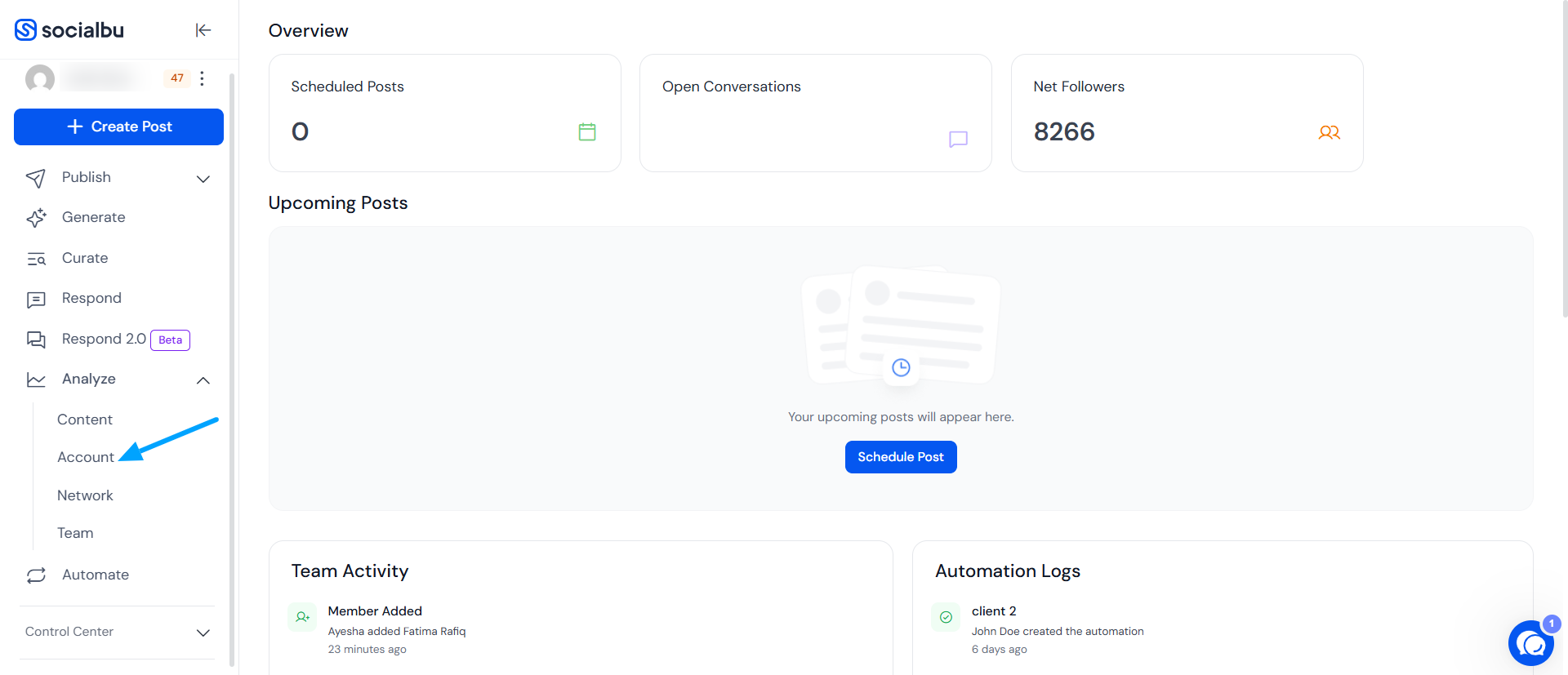
Log in to your SocialBu account
Go to the Analyze section from the left-hand navigation
Click on Account under the Analyze menu
2. Check Account Growth
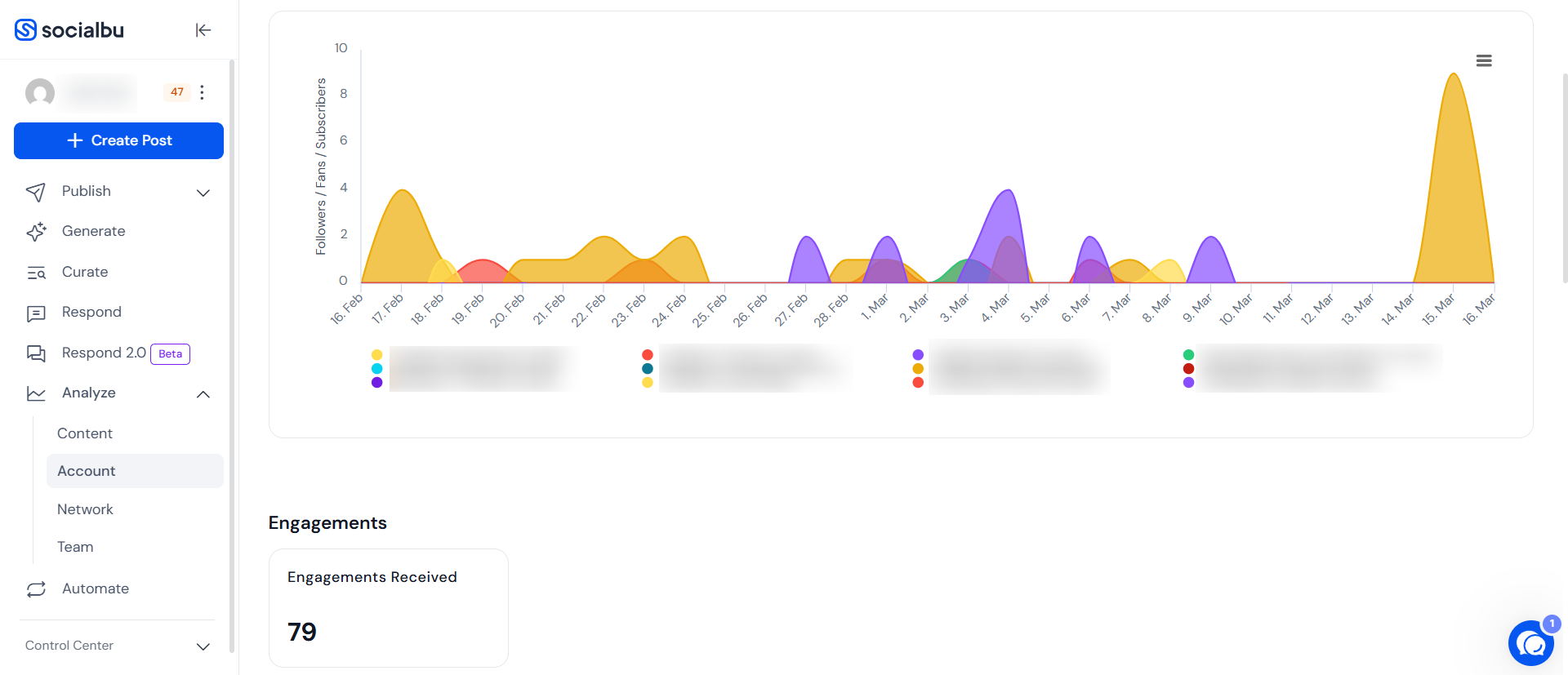
Use the Filters to select the account and date range
In the Growth section, you'll see a graph displaying the net followers gained over the selected period
This metric reflects total followers gained minus unfollows.
3. Check Account Engagement
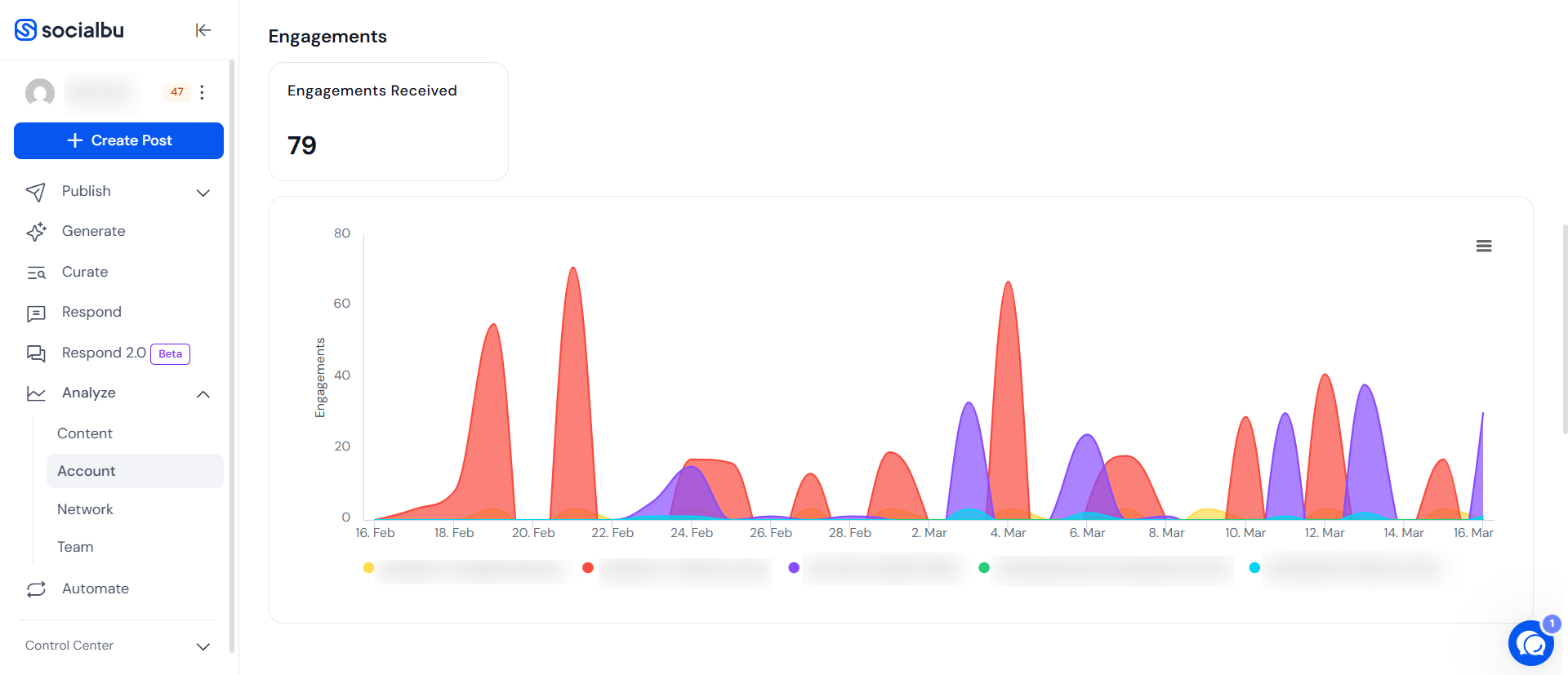
In the Engagements section, view the total number of interactions your content received
This includes likes, shares, comments, clicks, etc.
Use the filters to customize the data based on platform or time period
4. Review Account Overview
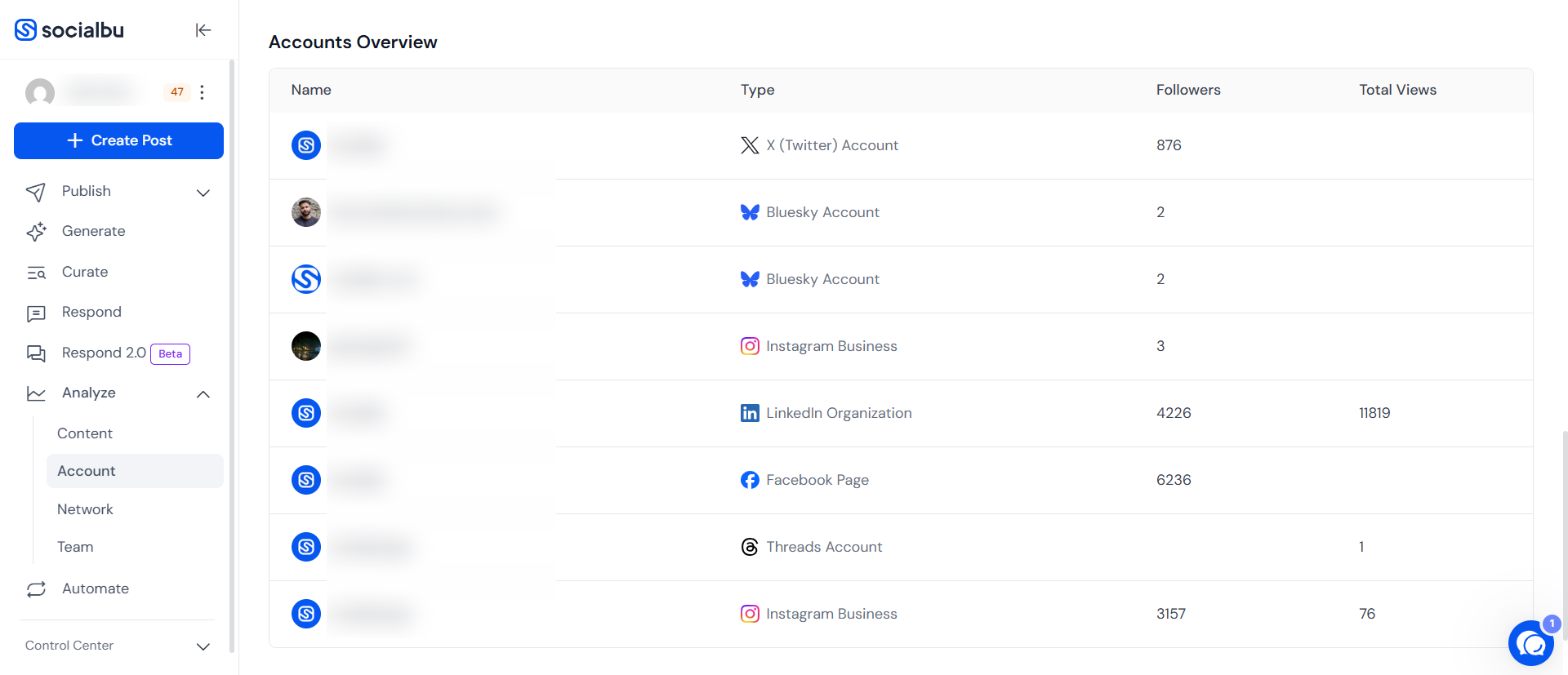
Scroll down to view the Accounts Overview
This shows a summary of total followers gained, as well as the number of profile visits across selected accounts
All metrics are filterable by time and account type for detailed comparison.
Steps to View Monthly/Yearly Account Performance Report
Click on the Filter button located at the top-right.
Set your desired Start Date and End Date to define the time range for your report.
For monthly reports: Select the 1st to the last day of the month (e.g., May 1, 2025 – May 31, 2025)
For yearly reports: Select January 1 to December 31
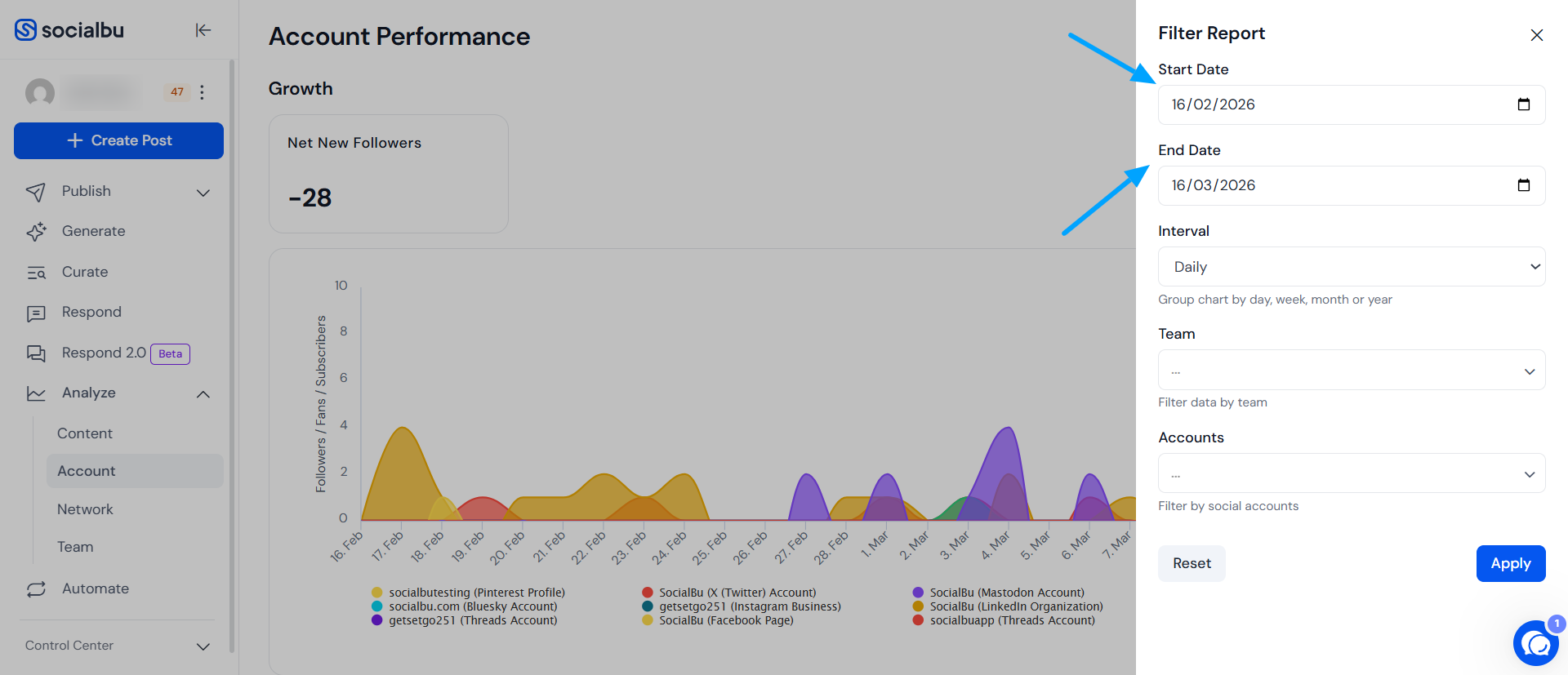
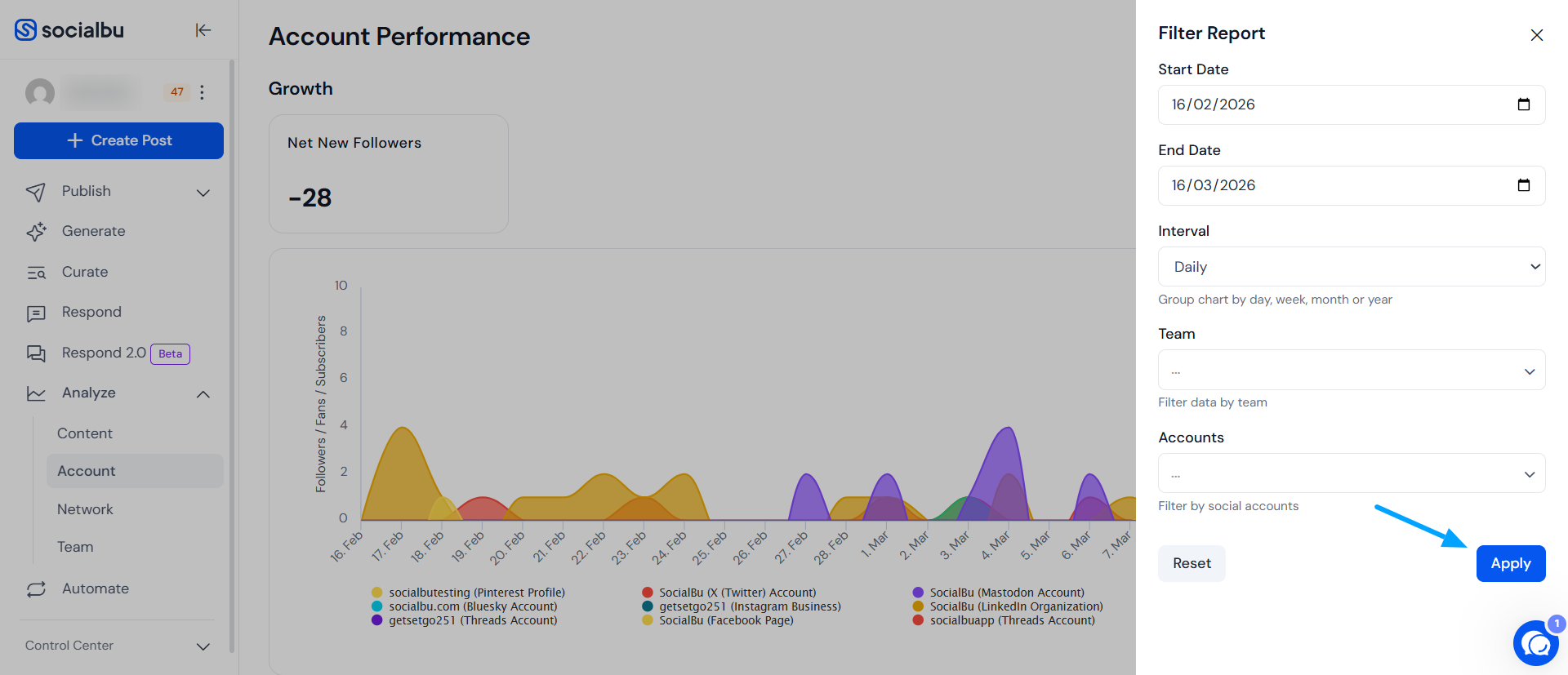
Once the dates are selected, click Apply to generate the report.
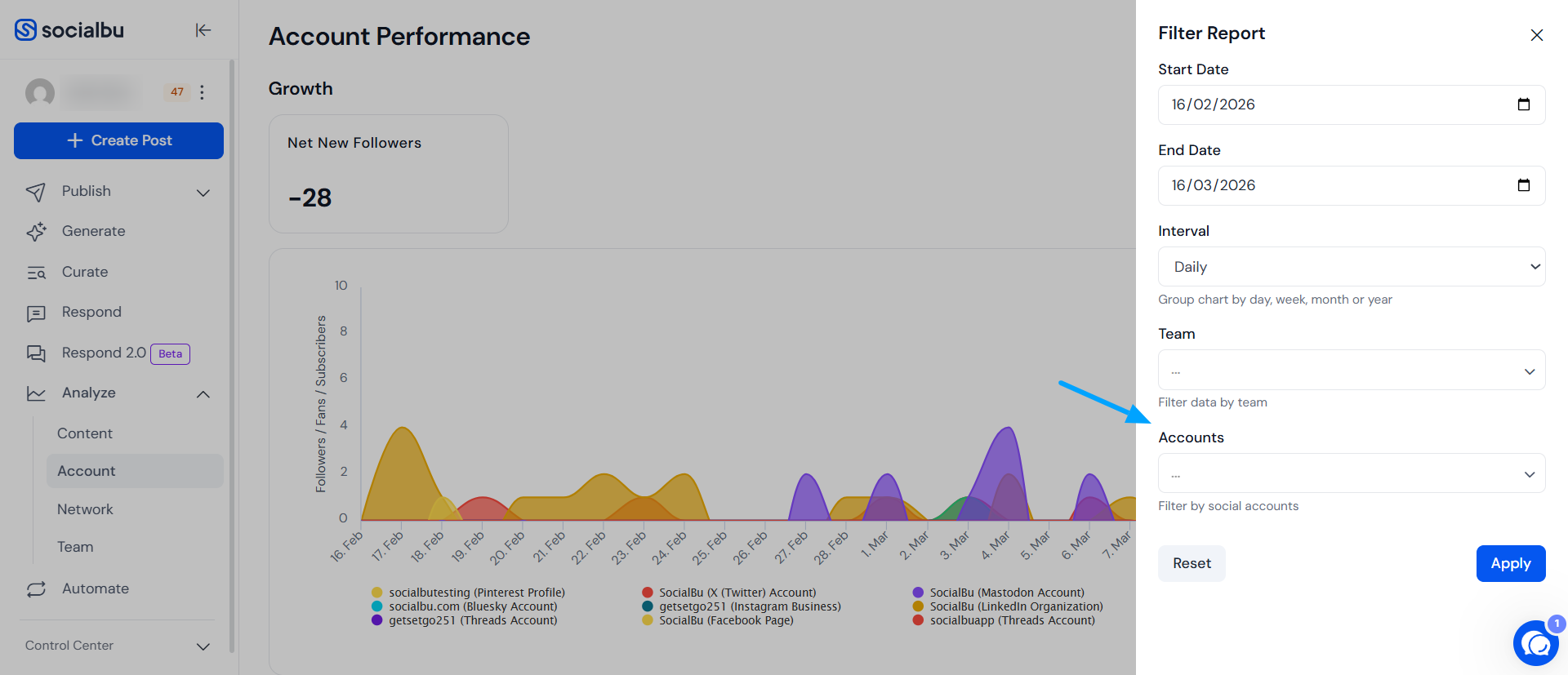
Filtering specific social account(s) report
In the filter panel, click on the Accounts dropdown.
Select the specific social media account(s) you want to analyze.
You can select a single account for individual performance.
Or select multiple accounts for a comparative overview.
Once you've made your selection, click Apply.
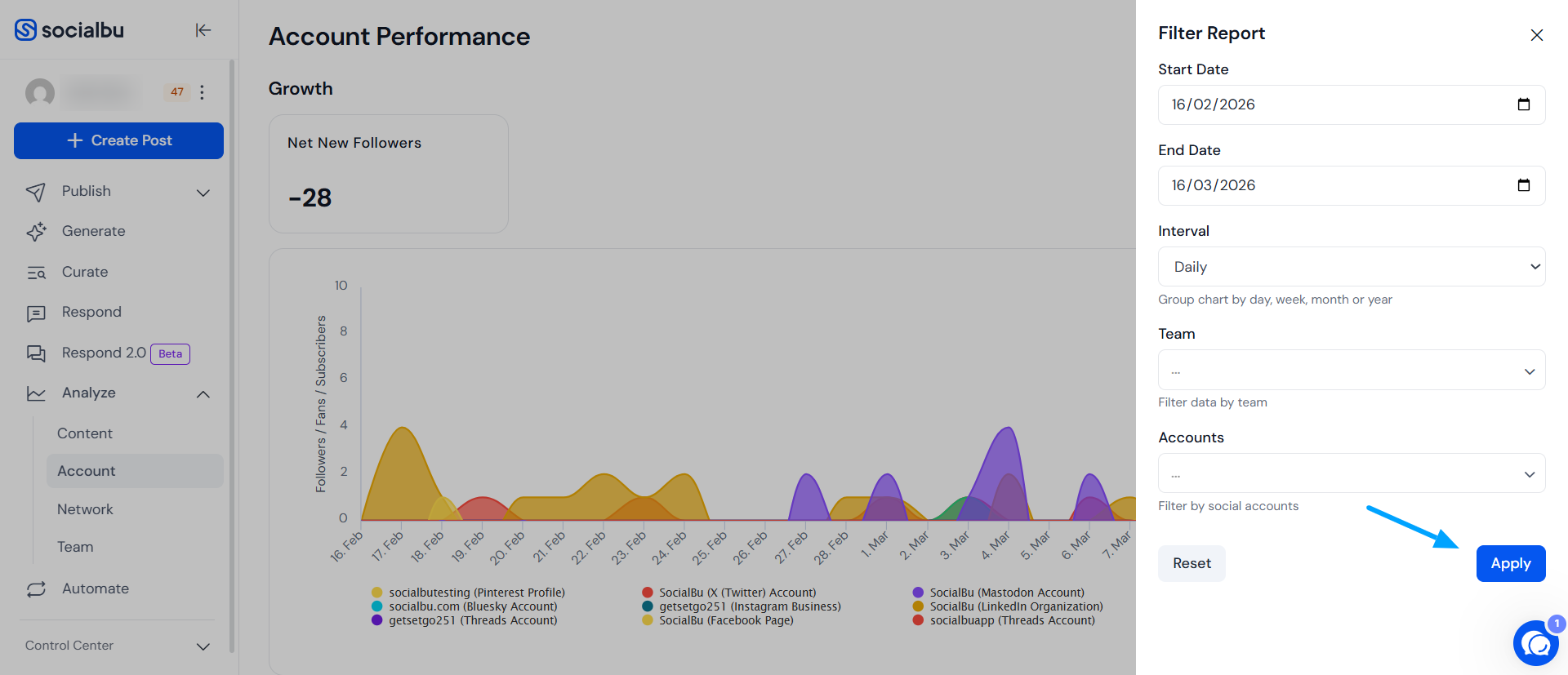
Your dashboard will now display performance data filtered by the account(s) you selected.
How can I view specific team account's performance?a
In the Filter options, click on the Team dropdown.
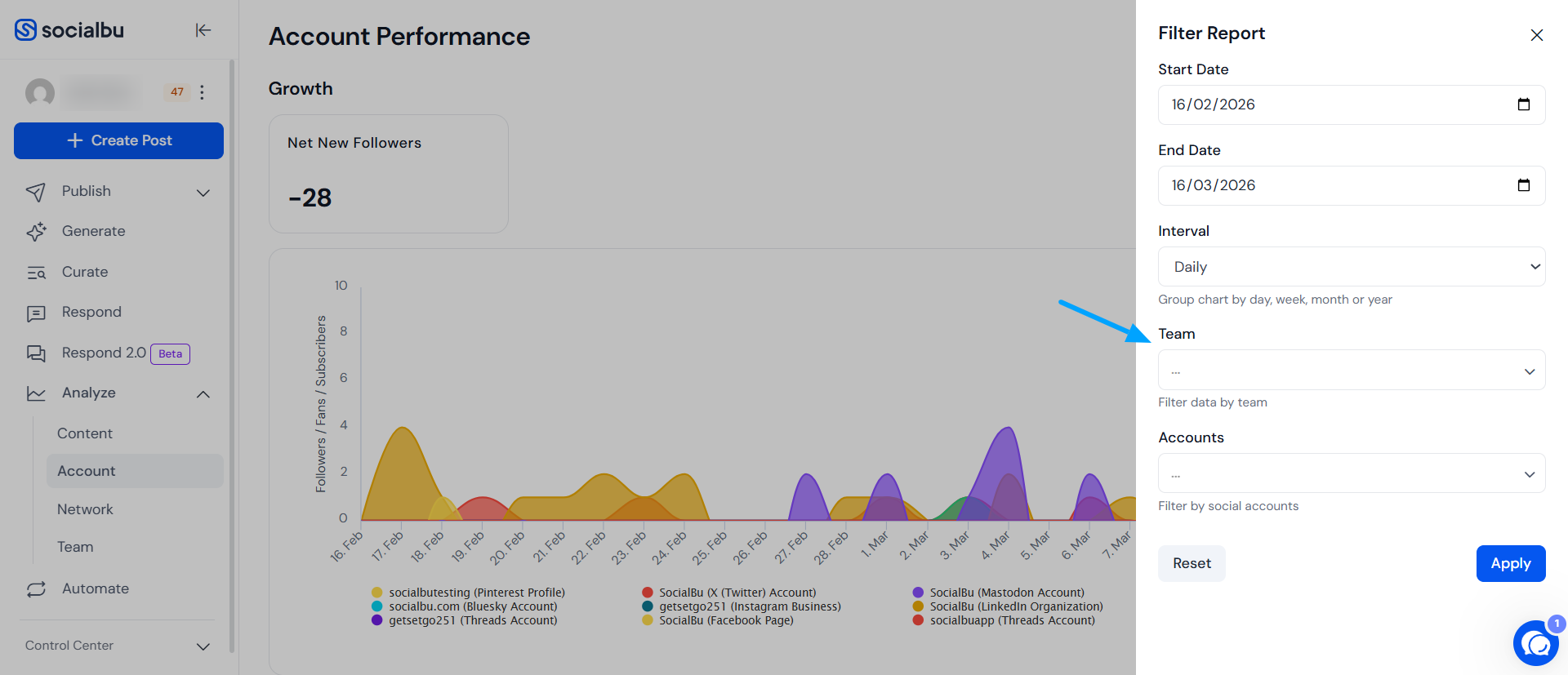
Select the team whose performance you want to view.
Click Apply to generate the report filtered by the selected team.
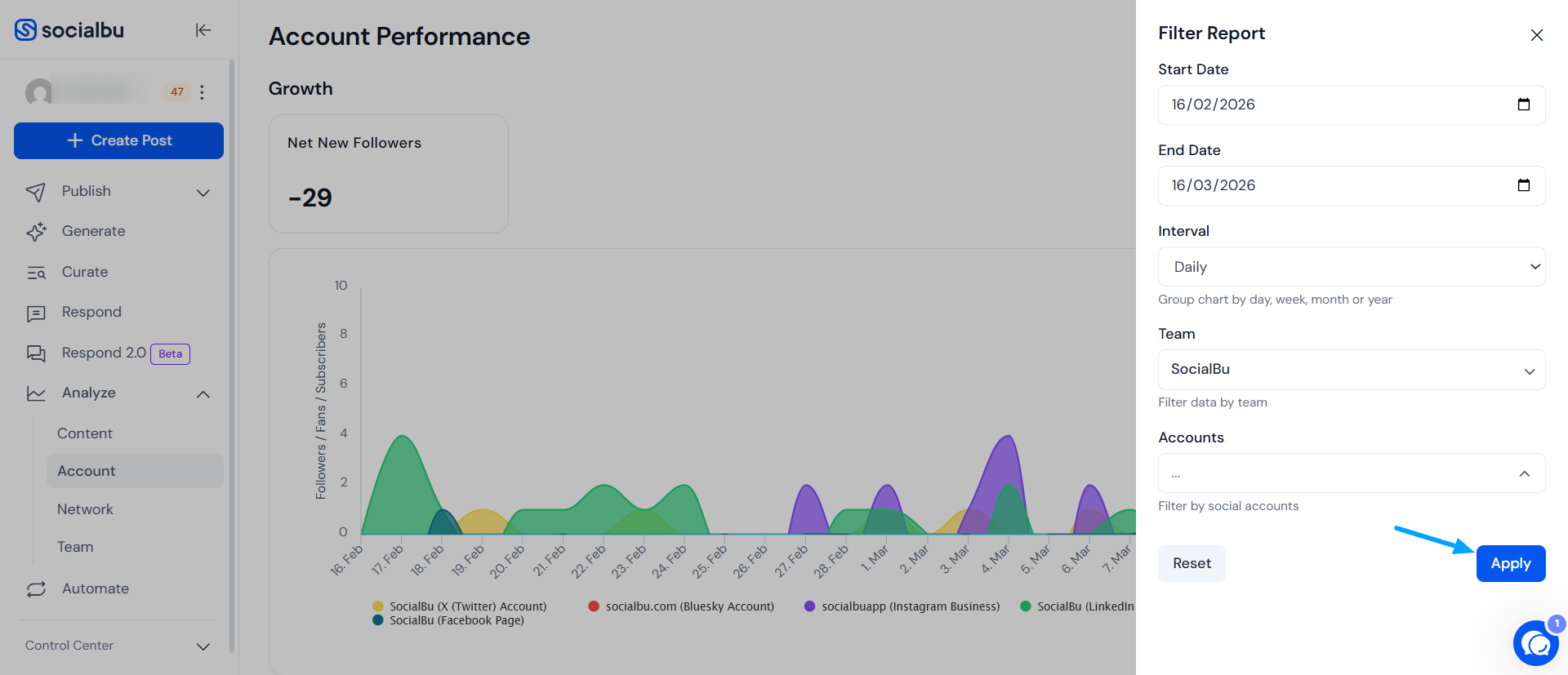
Can I compare engagement between two social media platforms?
Yes. Use the filters to select multiple accounts and compare their metrics side by side.
Does SocialBu track profile visits for all platforms?
Profile visit tracking is supported where the platform’s API allows. Metrics may vary by platform.
What is included in Engagements?
Engagements include all interactions such as likes, comments, shares, retweets, and clicks, depending on the platform.
How far back can I view analytics?
You can use the date filter to select any range, depending on the data availability from the connected platform.
Can I view performance of a specific account only?
Yes, use the account dropdown in the filter section to select a specific social media account.
What metrics are included in the report?
Metrics include followers growth, profile visits, reach, engagement, and more depending on the platform (e.g., Facebook, LinkedIn, Instagram, etc.)
Can I export the monthly account report?
Yes, charts and graphs can be downloaded as PDF, PNG, or JPEG files.
Can I apply account filters along with a specific date range?
Yes. You can filter reports using both account and date range simultaneously.
What platforms are supported in account filters?
All major platforms connected to SocialBu including Facebook, Instagram, Twitter (X), LinkedIn, and Google Business Profile.
Can I save these filtered reports?
You can export visual charts and performance graphs in PDF, PNG, or JPEG formats for record-keeping or presentations.
Need Further Assistance?
If you have any other concerns or queries, email us at support@socialbu.com 📩